IPTVUK BLOG • SETUP GUIDE
How to Install IPTV on Firestick (Step by Step, UK 2026)
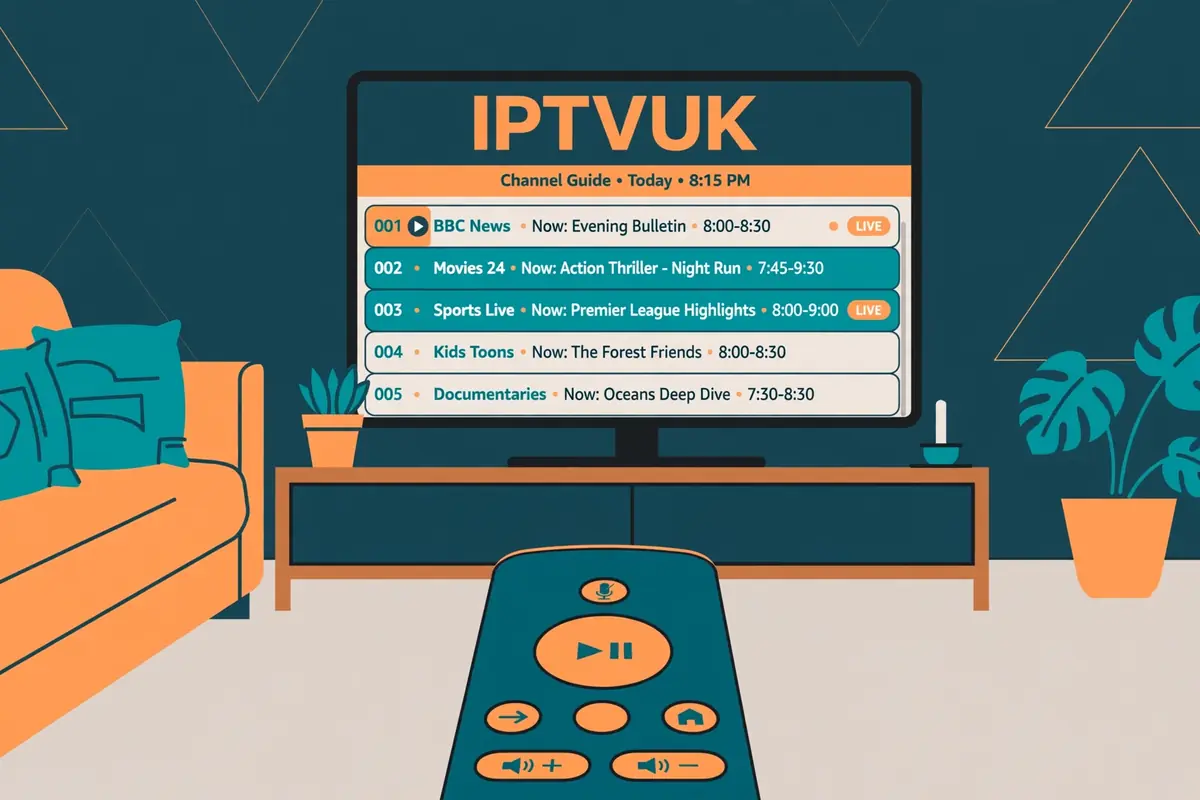
Learning how to install IPTV on Firestick is simpler than most people expect: you add a player app to your Amazon Fire TV Stick, sign in with the details from your IPTV subscription, and the channels appear inside that app. Neither the stick nor the player holds channels on its own — together, they turn your television into a full IPTV setup. This guide covers the whole job for UK viewers in 2026, including the check that saves the most wasted time: whether your Firestick can install apps from outside the Amazon Appstore at all.
Checked on 8 November 2026.
The Short Answer: How Do I Install IPTV on Firestick?
First check your stick runs Fire OS rather than Vega OS, then switch on Install unknown apps for Downloader, fetch Downloader free from the Amazon Appstore, and use it to install a player app such as TiviMate or IPTV Smarters Pro. Sign in with the Xtream Codes details IPTVUK sends you, let the channels and programme guide load, and you are watching in about 15 minutes.
- Channels: 55,000+ live UK and international channels
- On demand: 195,000+ movies and TV series
- Picture quality: 4K and Full HD streams
- Stability: Anti-Freeze Technology 9.1 with 99.9% uptime
- Guide and catch-up: Full EPG plus 7-day catch-up TV
- Prices: £12.99 for 1 month, £24.99 for 3 months, £49.99 for 12 months VIP
- Support: 24/7 UK support, ordering and setup via WhatsApp
Can Your Firestick Install IPTV? Check First, in 30 Seconds
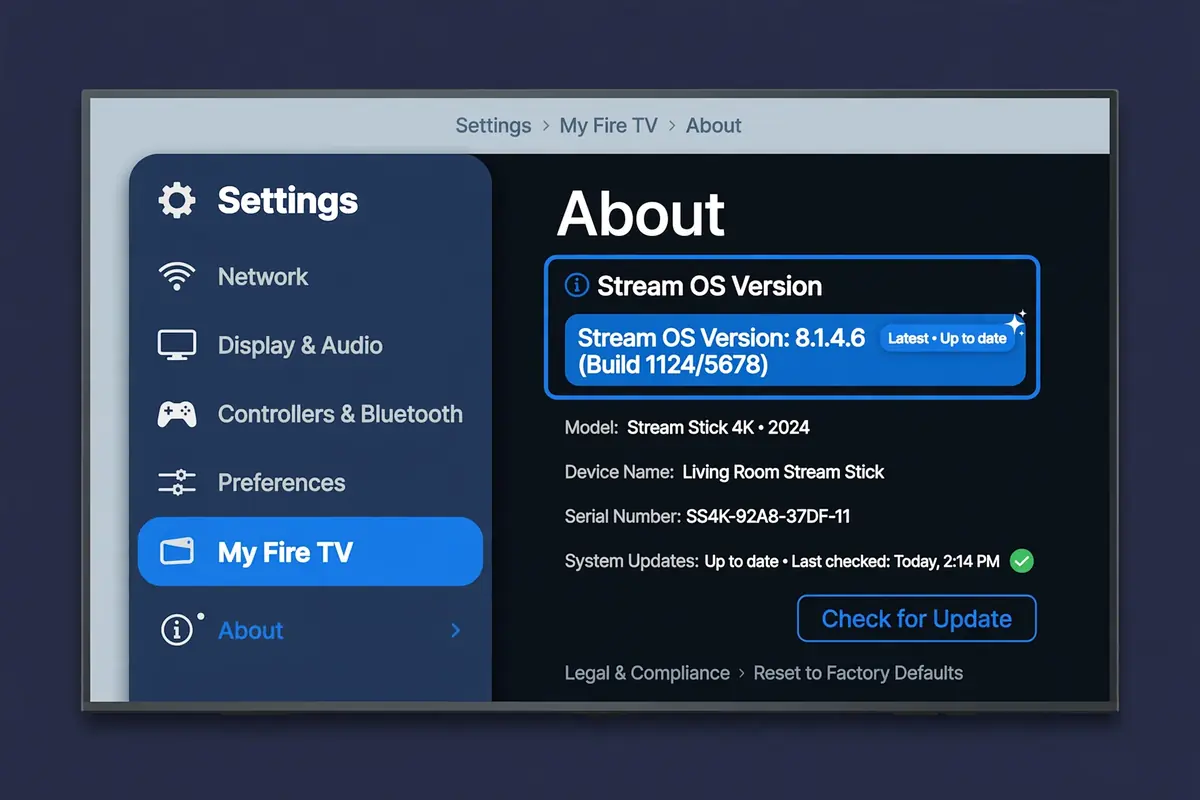
Yes — most Firesticks can install IPTV, but the newest ones cannot, so check which kind you own before you start. Older sticks run Fire OS, built on Android, which lets you install apps from outside the Appstore. The newest sticks run Vega OS, a Linux-based system Amazon built itself, and install apps only from the Amazon Appstore. The Fire TV Stick 4K Select and the 2026 Fire TV Stick HD run Vega OS and cannot sideload APK files at all — Downloader and similar tools do not work on them, and no setting changes that. Check yours under Settings > My Fire TV > About: if it names Fire OS, carry on; if it shows only "OS" with a number such as OS 1.1, you have a Vega stick and the sideloading steps below will not apply. On Vega, use an Appstore-only player or a different device.
What You Get with IPTVUK on Firestick
Once the player is installed, your Firestick handles live TV, sport and films from an IPTV subscription. With IPTVUK you get 55,000+ live channels and 195,000+ films and series, Anti-Freeze 9.1 for a stable picture, 7-day catch-up and help over WhatsApp on +44 7735 089156. If you are still weighing up providers, our guide to the best IPTV UK services in 2026 compares what to look for, and our explainer on what IPTV is and how it works in the UK covers the basics.
The 15-Minute Route at a Glance
Here is the whole job in one view. First confirm your stick runs Fire OS and your Wi-Fi is steady, then switch on the setting that allows apps from unknown sources, fetch the free Downloader app from the Amazon Appstore, and use it to install a player app such as TiviMate or IPTV Smarters Pro. Finally, sign into that player with the Xtream Codes details IPTVUK sends you, wait for the channels and programme guide to load, and tidy up your favourites. The downloads are small; the longest wait is the first channel and guide load, which can take a few minutes. Keep your subscription email open on your phone: you will need a server address, a username and a password.
| Stage | What happens | Time |
|---|---|---|
| Model and Wi-Fi check | Confirm Fire OS and a steady connection | 2 minutes |
| Unknown sources on | Allow Downloader to install a player | 2 minutes |
| Downloader and player | Fetch Downloader, then install your player | 5 minutes |
| Sign in and load | Enter IPTVUK details; load channels and guide | 5 minutes |
| Make it yours | Favourites, catch-up and picture check | 2 minutes |
Step 1: Confirm Your Firestick Runs Fire OS and Check Your Wi-Fi
Start with the two checks behind most failed setups. Open Settings > My Fire TV > About and confirm your stick runs Fire OS rather than Vega OS. Then check your connection: IPTV streams live, so weak Wi-Fi shows up as buffering before anything else does. If the stick sits far from the router, move the router closer or plug in an Ethernet adapter. Run a quick speed check on your phone in the same room — if the phone struggles, the stick will too. Also sign into your Amazon account on the stick, because you need the Appstore next.
Step 2: Switch On Install Unknown Apps for Downloader
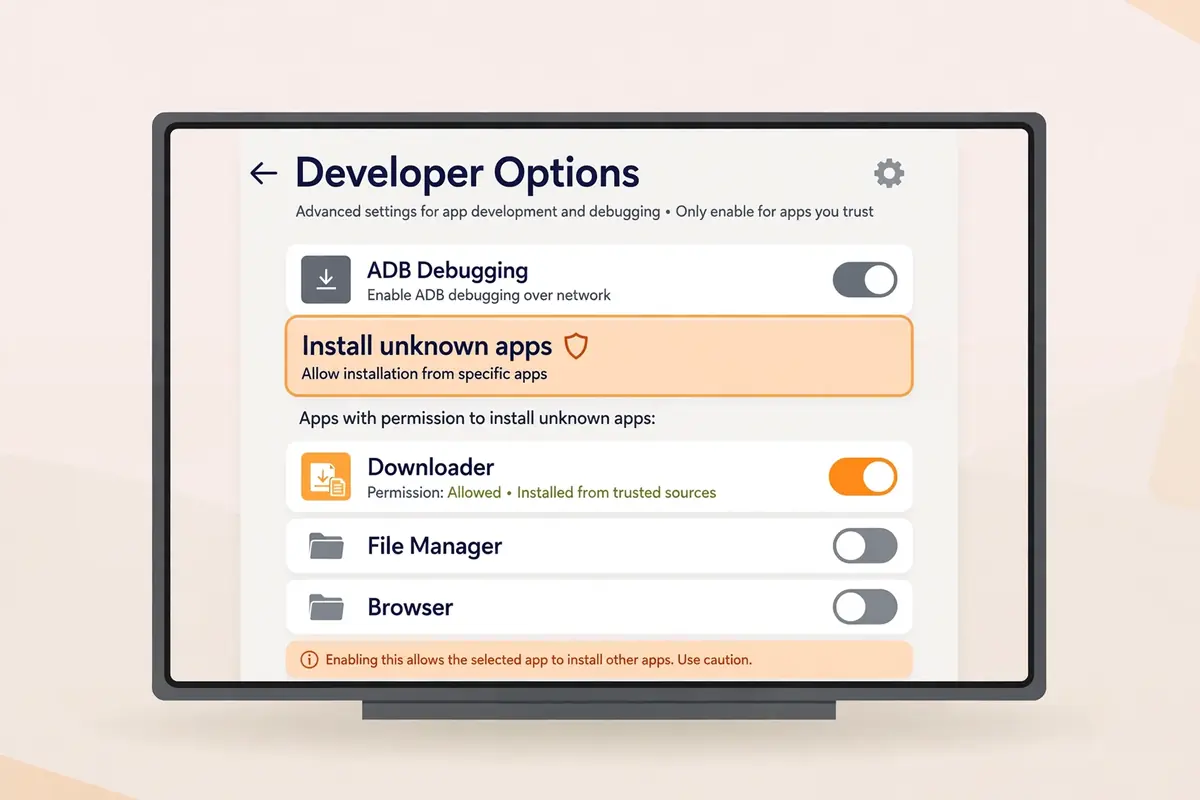
Most IPTV player apps are not listed in the Amazon Appstore, so the Firestick blocks them by default. This step only changes a permission — it installs nothing by itself. From the home screen, open Settings (the gear icon), then My Fire TV, then Developer Options. If Developer Options is missing, open Settings > My Fire TV > About and press the centre button on your remote seven times on the device name. Inside, open Install unknown apps and switch it on for Downloader — on older software the same switch is called Apps from Unknown Sources. Only switch this on for apps you trust, and only install a player from its official store or the link your provider supplies.
- From the home screen, open Settings, then My Fire TV.
- Choose Developer Options and open Install unknown apps.
- Find Downloader in the list and turn it on.
- Press Home to return to the home screen.
Step 3: Fetch Downloader from the Amazon Appstore
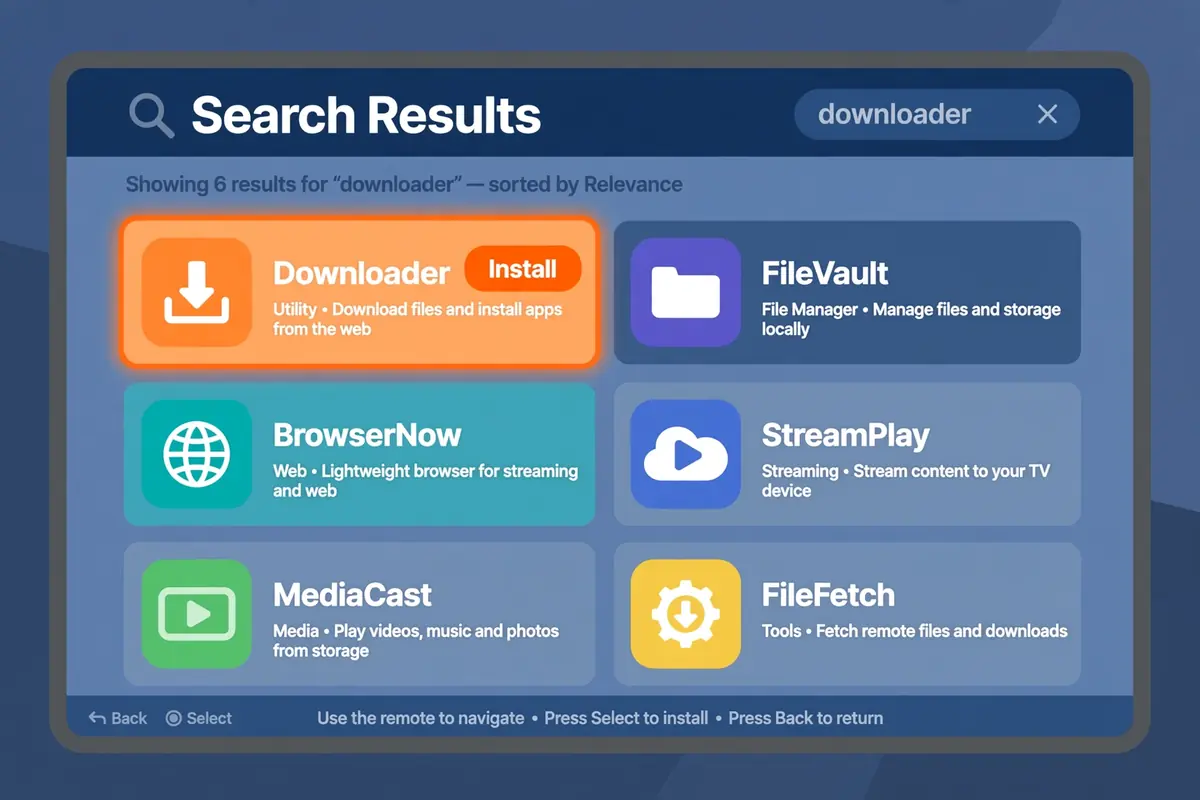
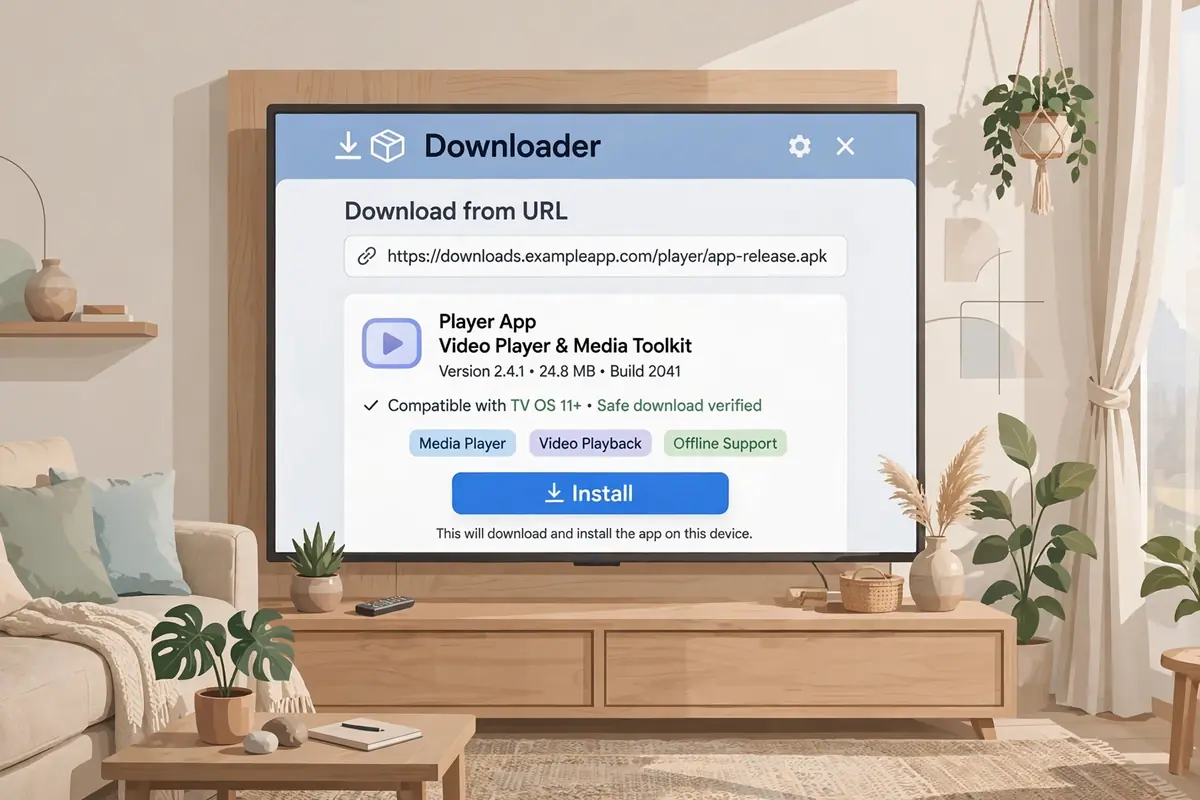
With permission granted, fetch Downloader itself. From the Firestick home screen, open the Amazon Appstore, search for Downloader, and install the app with the orange icon — it is free, made by AFTVnews, and widely used for installing other apps. Open Downloader when it is installed, but do not install an IPTV app from within it yet: you need to install the player first. The exact download address depends on the player you choose — TiviMate and IPTV Smarters Pro publish theirs on their own websites, while IPTVUK’s WhatsApp team will also confirm a current address if you ask. Typing a long web address with the remote can be slow work if it fails, so use the Fire TV app on your phone as a keyboard or try the direct download method below.
Step 4: Install a Player App Using Downloader
A player app is an empty shell for your channels: it plays the streams, but it holds no channels of its own. In Downloader, type the official download address for your chosen player (from the app maker’s own site or the link IPTVUK gives you). Wait for the file to download, and choose Install. When it finishes, choose Done rather than Open, then delete the setup file if the app offers to — the file takes up space and you no longer need it. Keep things clear: TiviMate suits a tidy, TV-style layout, IPTV Smarters Pro suits ready-made sections with a favourites row, and most players work the same way once you have their address. If you tap Install and nothing happens, check that Step 2 is actually on for Downloader.
Not set up with IPTVUK yet? Try IPTVUK free — 55,000+ channels, 195,000+ films and series, Anti-Freeze 9.1 and 7-day catch-up — or see the plans from £12.99. Ordering takes minutes over WhatsApp on +44 7735 089156, and your login details arrive ready to enter in the next step.
Step 5: Sign In with Your IPTVUK Xtream Codes Details
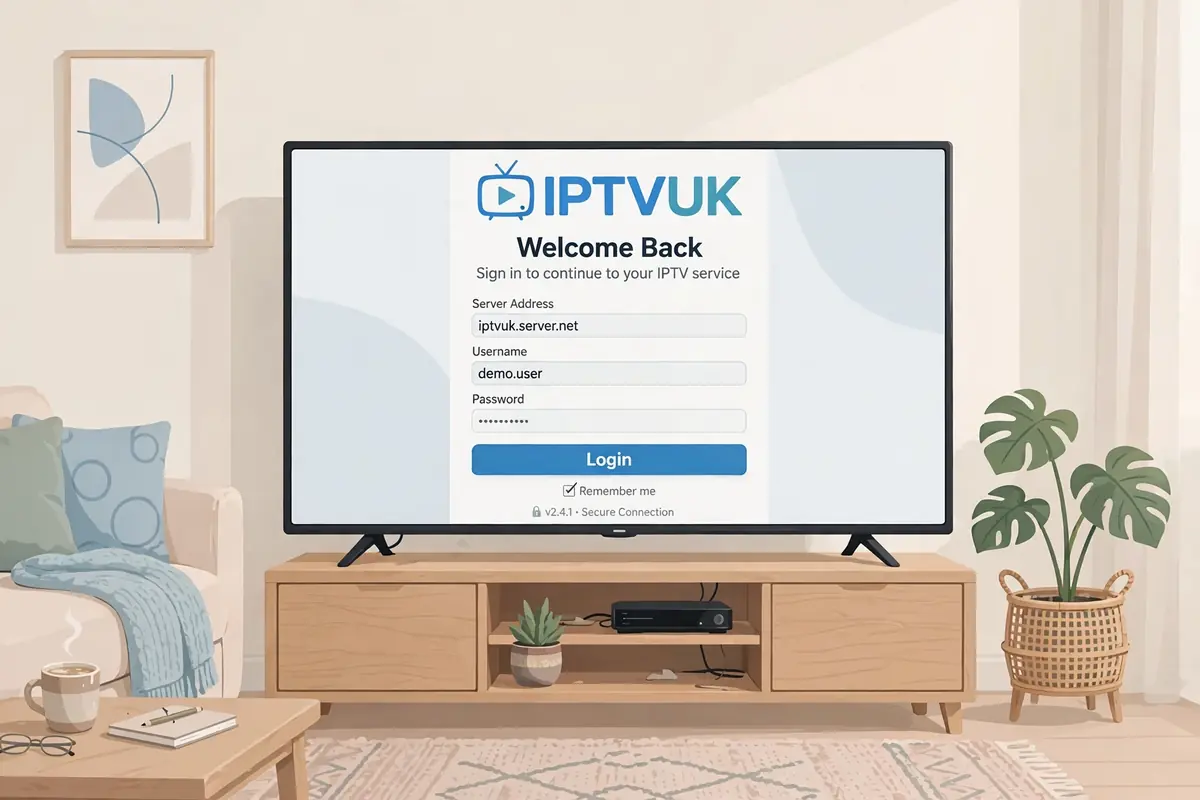
Now connect the empty player to your subscription. Open the player and choose Add Playlist, Add User or Login with Xtream Codes API — the wording varies, but the idea is identical. Enter the three details exactly as they appear in your IPTVUK email: the server address, your username and your password, and name the playlist something recognisable, such as IPTVUK. Confirm, and let the app load the channel list and guide — the first load can take a few minutes, so leave it running. If IPTVUK sent an M3U link instead, choose the M3U URL option and paste the full link — Xtream Codes is usually easier to type with a TV remote. If sign-in fails, retype the details character by character: logins are case-sensitive, and a trailing space copied from an email is a frequent culprit.
Step 6: Load the EPG, Catch-Up and Your Favourites
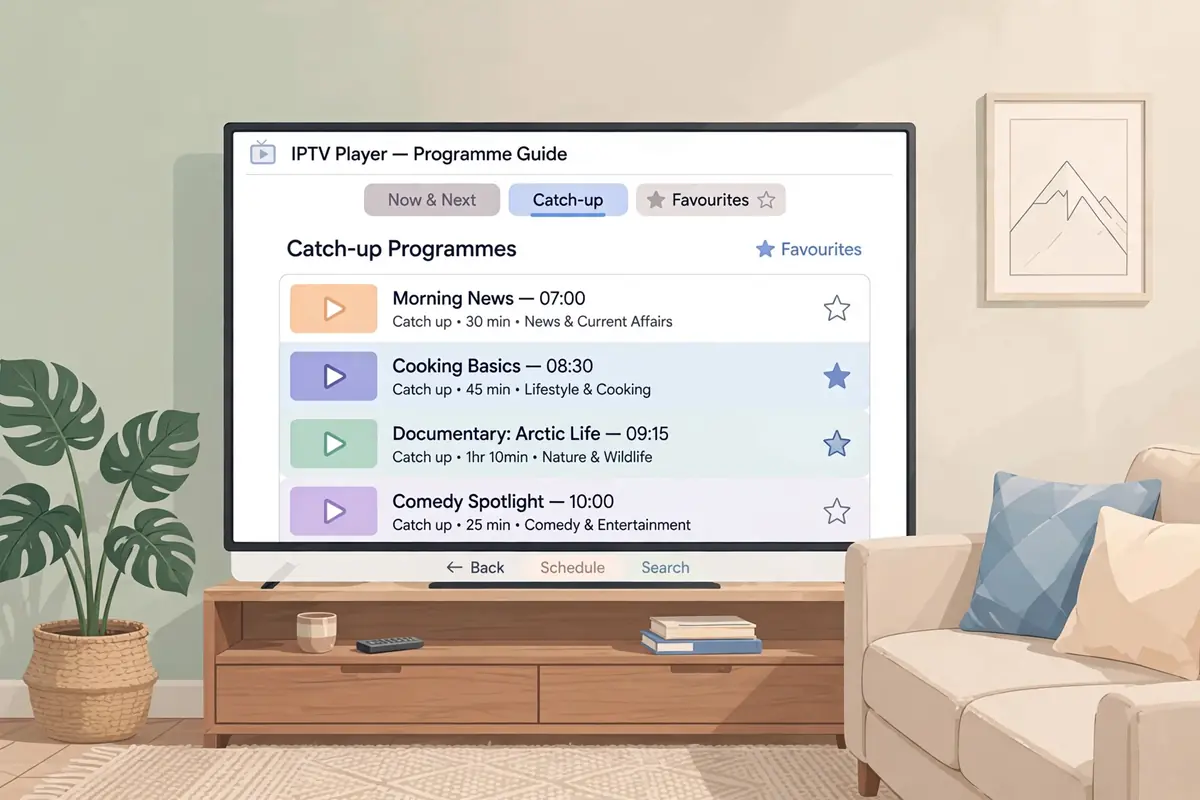
Once the channels appear, spend a few minutes making the app feel like proper television. The programme guide, or EPG, usually loads automatically with Xtream Codes; if it is blank, use the guide refresh option in the app’s settings and let it finish — the first sync is the slow one. Next, try catch-up: with 7-day catch-up included, you can scroll back through the guide and watch programmes from the past week. Then mark your favourites by long-pressing channels you watch most, or using the star option, so daily viewing starts from a short list instead of thousands of channels. Finally, test one live channel and one film: if both play smoothly, setup is finished.
After Setup: Habits That Keep Your Firestick Running Well
A Firestick is a small, low-power device, so a few habits go a long way. Restart it once a week, keep its software updated, and uninstall apps you never open rather than letting storage fill up. Give the stick breathing room behind the TV, and close background apps before a big match or film night. If your household watches on several screens at once, check how many connections your plan covers before adding a second stick — too few will block the extra device. If IPTV stalls in the evening but works fine during the day, read our guide to fixing Plusnet Safeguard blocking IPTV, since ISP filters are a common cause. Browse all our setup help on the IPTVUK blog whenever a new question comes up.
If Something Goes Wrong, Check This Table First
Most Firestick IPTV problems have ordinary causes, so work through this table before reinstalling anything — reinstalling wipes your login and favourites.
| Symptom | Most likely cause | Fix |
|---|---|---|
| Buffering on every channel | Weak Wi-Fi or busy broadband | Move closer to the router, try Ethernet, restart the stick |
| Black screen after login | Wrong server address | Check the server address is exactly right |
| Player will not install | Unknown sources off, or no free storage | Switch on Install unknown apps for Downloader; free space |
| Login rejected | Mistyped detail or connection limit reached | Retype server, username and password exactly |
| Guide is empty | First EPG sync unfinished | Wait, then refresh the guide in the app’s settings |
| App crashes on opening | Corrupt cache | Force-stop the app, clear its cache (not its data) |
| Typing passwords is painful | TV remote keyboard | Use the Fire TV app on your phone as a keyboard |
Our Verdict
“A Firestick plus IPTVUK is the quickest route to a full television setup in a UK home: check the stick runs Fire OS, allow unknown sources, fetch Downloader, install a player, sign in with your Xtream Codes details, and let the guide load.” That is the whole job: about fifteen minutes the first time, then seconds a day afterwards — open the player, let it load, pick a favourite, press play and watch. Install the player only from a trusted source, and type your login details exactly. If your stick runs Vega OS, do not fight it: choose an Appstore player or a Fire OS device instead.
Ready to watch?
Start your free IPTVUK trial or compare plans from £12.99 — 55,000+ channels, 195,000+ films and series, Anti-Freeze 9.1 and 7-day catch-up, with support over WhatsApp on +44 7735 089156 if any step above does not match what you see on screen.
Your login details will be with you in about five minutes.
Frequently Asked Questions
Q. Can I install IPTV on any Firestick?
Most, but not all. Check Settings > My Fire TV > About first. If it says Fire OS, you can sideload a player with Downloader. If you have a 2026 Fire TV Stick HD or Fire TV Stick 4K Select running Vega OS, you cannot install Downloader or any APK files. See the setup steps on this page.
Q. Is installing IPTV on a Firestick legal in the UK?
Installing a player app is legal. Whether your use is legal depends on your source: use a legitimate service with appropriate rights, such as a properly licensed UK IPTV provider.
Q. Do I need a VPN to use IPTV on my Firestick?
Usually not. Your connection does not require a VPN for every provider. You should use an Anti-Freeze service such as IPTVUK, where you can choose to add a VPN if you run into ISP filtering or local blocking. A VPN is only required where your provider or ISP enforces it.
Q. Can I use a free IPTV player on Firestick?
Yes — TiviMate, XCIPTV Player, IPTV Smarters Pro and similar services are free. Download from the Amazon Appstore or install the APK from official store sources with Downloader if it is permitted, to avoid harvesting risks.
Q. Can I watch 3pm Premier League kick-offs on Firestick?
Yes — if your service has access to them. IPTVUK includes 3pm kick-offs, PPV boxing and UFC. Apps like TiviMate and XCIPTV also include catches directly in their channels, so you can start at the kickoff every time.
Q. Will IPTV work with slow broadband on my Firestick?
A stable 10 Mbps connection is enough for 1080p, and 20–25 Mbps for 4K. Check your broadband stability to avoid buffering on Firestick. For more detailed advice, see our guide to the best IPTV UK services in 2026.