IPTVUK BLOG • TROUBLESHOOTING
Downloader Not Showing in Install Unknown Apps? Fix It on Firestick (UK 2026)
If Downloader is not showing in the Install Unknown Apps list on your Firestick, the app is either not installed, or Developer Options is hidden on your Fire TV. Both causes are easy to fix, and the whole job takes about ten minutes. Work through the fixes below in order — each one rules out a different cause.
Quick facts about IPTVUK:
- 55,000+ live channels
- 195,000+ movies and series on demand
- Anti-Freeze 9.1 technology for smooth streams
- 7-day catch-up TV
- Plans from £12.99 a month — £12.99 monthly, £24.99 quarterly, £49.99 for six months
- WhatsApp support on +44 7735 089156
Checked on 26 November 2026. Menu paths follow Amazon's own Fire TV help pages, linked in the sources section below.
Why Is Downloader Missing from Install Unknown Apps?
Downloader only appears in the Install Unknown Apps list when two things are true: the app is installed on your Firestick, and Developer Options is switched on. If either one is missing, Downloader simply does not show up — and that is by design, not a fault in your device.
The list only shows apps that are already on the device. Install Unknown Apps is a per-app permission: it controls whether a particular app may install other apps from outside the Amazon Appstore, so an app that is not installed cannot appear. The second cause is newer Fire OS versions, which hide Developer Options until you unlock it by pressing the device name seven times in the About screen.
Fix 1 — Check That Downloader Is Actually Installed
Before changing any setting, confirm the app is on the device — a missing Downloader is the most common cause of a missing list entry.
- From the Firestick home screen, go to the Apps section (the grid icon on the home screen, or hold the Home button and choose Apps).
- Look for the orange Downloader icon. If you see it, the app is installed — skip to Fix 2.
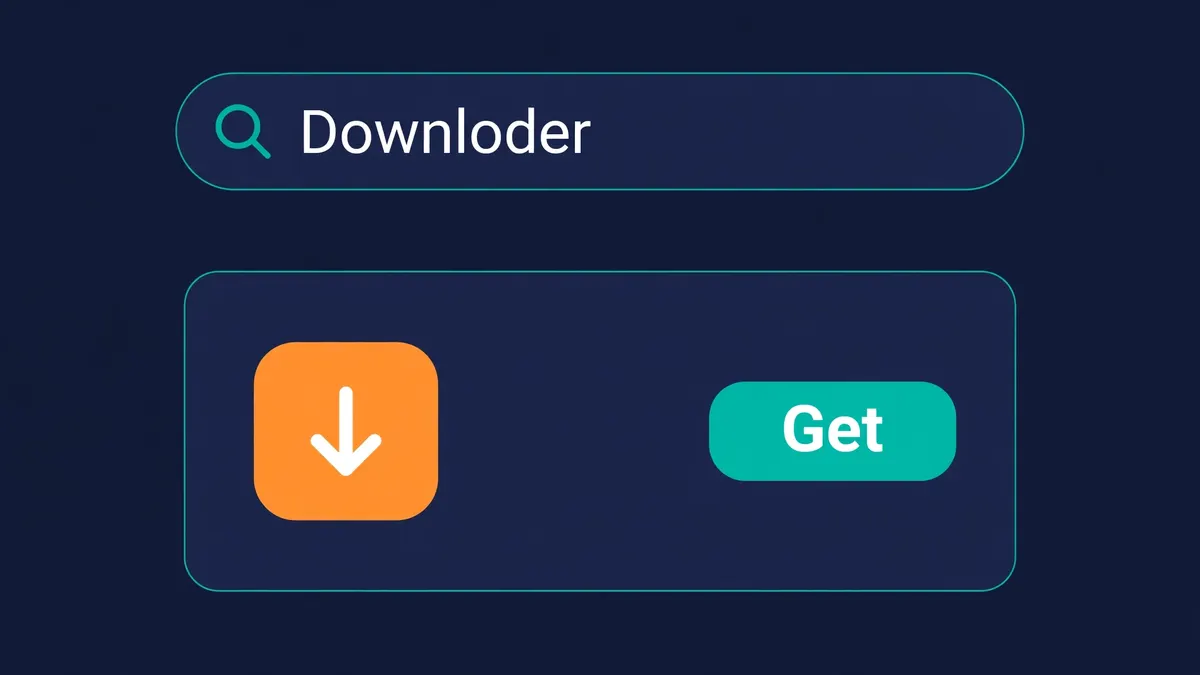
- If it is not there, install it: open the Amazon Appstore, search for "Downloader", select the orange app by AFTVnews, and choose Download or Get.
- Open Downloader once after installing it. The app needs to run at least once before the system registers it properly — just open it and close it again.
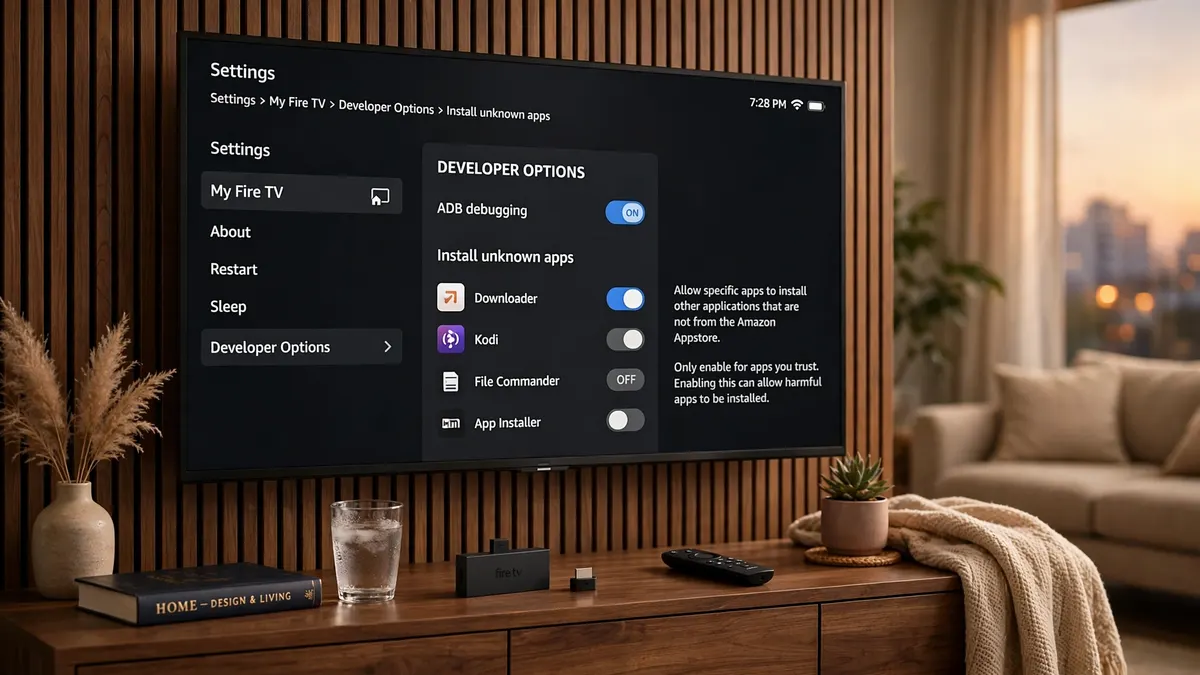
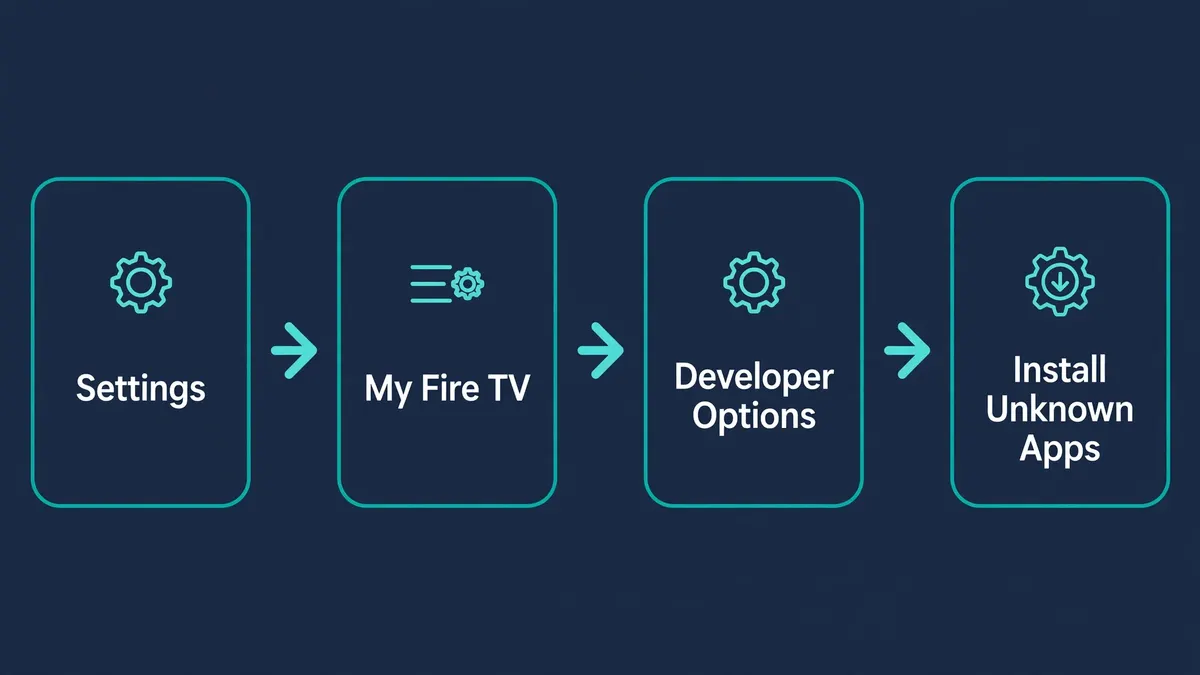
- Now check the Install Unknown Apps list again (Settings > My Fire TV > Developer Options > Install Unknown Apps). If Downloader appears, switch it on and you are done.
If Downloader is installed but still does not appear, the problem is Developer Options, not the app — move on to the next fix.
Fix 2 — Open the Install Unknown Apps Menu the Right Way
Many people look in the wrong place for this setting, because it sits two menus deep and the path is easy to get wrong.
- Go to Settings (the gear icon on the home screen).
- Select My Fire TV — on some models this is labelled Device & Software instead.
- Select Developer Options. If you cannot see Developer Options at all, do not worry — that is Fix 3.
- Select Install Unknown Apps. You will see a list of the apps installed on your Firestick.
- Find Downloader in the list and switch it to On. Once it is on, Downloader is allowed to install apps from outside the Appstore, which is what you need for your IPTV player.
If the list opens but Downloader is not in it, go back to Fix 1 and reinstall the app. If Developer Options is missing entirely, the next fix unlocks it.
Once Downloader is working, your IPTV is minutes away: IPTVUK gives you 55,000+ channels, 195,000+ movies and series, Anti-Freeze 9.1 and 7-day catch-up — and you can test it all on a free trial before you pay. See the plans at ukiptv.site/pricing.html or start your trial at ukiptv.site/free-trial.html.
Fix 3 — Unhide Developer Options (Press the Device Name Seven Times)
On newer Firesticks, Developer Options is hidden until you unlock it — and this is the step most guides skip.
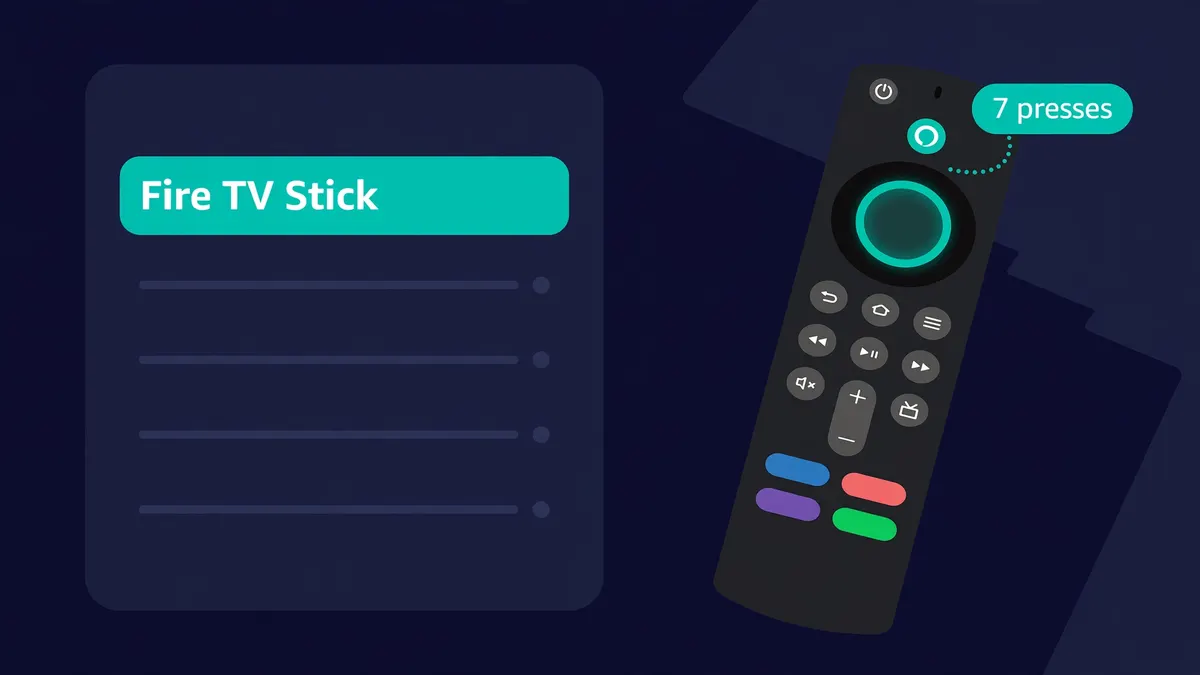
- Go to Settings > My Fire TV > About.
- Highlight the first item, "Fire TV Stick" (your device name). Do not press it once and move on — the trick is repetition.
- Press the select button on the name seven times in a row. After a few presses you will see a countdown message such as "You are 3 steps away from being a developer".
- Keep pressing until you see "You are now a developer". If you press too slowly, the count can reset — press steadily, about once a second.
- Go back to My Fire TV. Developer Options will now be listed in the menu.
- Open Developer Options > Install Unknown Apps and switch Downloader on.
This is a standard Android feature, not a hack, and it does not void any warranty — it simply reveals a menu Amazon hides from casual users. If the message never appears, make sure you are pressing the device name itself in the About screen, with the centre select button rather than the navigation ring.
Fix 4 — Restart the Firestick and Check Again
If Downloader is installed and Developer Options is unlocked but the app still does not appear, a restart clears the stale state that is hiding it.
- Hold the Select and Play/Pause buttons together for about five seconds until the Firestick restarts — or go to Settings > My Fire TV > Restart.
- Wait for the home screen to load fully before touching anything; the device is still loading apps in the background for the first minute.
- Open Settings > My Fire TV > Developer Options > Install Unknown Apps and look for Downloader again.
- If it appears, switch it on. If it still does not appear, move to the reinstall in Fix 5 — do not keep restarting, as the problem is the app install, not the device.
A restart also fixes a half-loaded app list, where some installed apps are missing from settings menus. Restarting once a week is good practice for any Firestick, and it costs nothing. One more thing to check: in late 2026 a Fire OS bug made the Install Unknown Apps list show up incomplete on some Fire OS 7 and 8 devices, even when Downloader was installed. Amazon confirmed the bug and pushed a fix through an automatic Settings update — so go to Settings > My Fire TV > About > Check for Updates and install anything waiting before you try the list again.
Fix 5 — Uninstall and Reinstall Downloader
A damaged install can leave Downloader half-registered: the icon is there, but the system does not list it as an app that can install other apps. A clean reinstall fixes that.
- Go to Settings > Applications > Manage Installed Applications.
- Select Downloader, then choose Uninstall and confirm.
- Restart the Firestick (Settings > My Fire TV > Restart) so the old registration is fully cleared.
- Open the Amazon Appstore, search for Downloader, and install it again.
- Open Downloader once, close it, then check Install Unknown Apps again. On a clean install, Downloader should now appear in the list — switch it on.
If Downloader still does not appear after a clean reinstall, check that your Firestick has enough free storage: go to Settings > My Fire TV > About > Storage. A device with almost no free space can fail to register a new install properly. Free up space by uninstalling apps you do not use, then reinstall Downloader once more.
Fix 6 — Use an Alternative Way to Sideload Your IPTV Player
If Downloader will not appear no matter what you try, you can still install your IPTV player — Downloader is a convenience, not the only route.
One option is to install your IPTV player from the Amazon Appstore directly, if it is listed there — several popular players, including IPTV Smarters Pro, need no sideloading at all. Another is to use a different sideloading app from the Appstore, such as Apps2Fire, and send the player to the Firestick from your phone. A third is the Silk browser, if your Fire TV has one — though you will still need Install Unknown Apps on for the browser.
Whichever route you take, only download player apps from their official websites or the Amazon Appstore. Random APK download sites are a common source of malware, and a fake player app can do far more damage than a missing Downloader ever could.
What to Do Once Downloader Is Switched On
With Downloader listed and switched on, the rest of the set-up is straightforward — and it is the same path every Firestick IPTV install follows.
Open Downloader, enter the download code or URL for your IPTV player, install the player, then sign in with the login details your provider sent you. Our full walkthrough covers the whole process step by step: how to install IPTV on Firestick. If you are still choosing a provider, our IPTV buyer's guide explains what to check before you pay, and our IPTV prices guide shows what a fair price looks like in the UK.
And if the Firestick still will not cooperate after all six fixes, do not spend the evening fighting it — message us on WhatsApp at +44 7735 089156 and we will walk you through it. That is what the support line is for, and it is quicker than a fourth factory reset.
Verdict: Downloader Hides for Two Reasons, and Both Take Ten Minutes
Downloader is missing from Install Unknown Apps for one of two reasons: the app is not properly installed, or Developer Options is hidden on your Firestick. Check the app is installed, open it once, unlock Developer Options by pressing the device name seven times in the About screen, then restart and reinstall if it still does not appear. In almost every case, one of those steps puts Downloader back in the list.
Frequently Asked Questions
Q. Why is Downloader not in the Install Unknown Apps list?
Because the list only shows apps already installed on your Firestick, and only once Developer Options is switched on. If Downloader is not installed, it cannot appear. On newer Fire OS versions Developer Options is also hidden by default, so the menu is missing until you unlock it by pressing the device name seven times in Settings, My Fire TV, About.
Q. How do I enable Install Unknown Apps on a Firestick?
Go to Settings, then My Fire TV, then Developer Options, then Install Unknown Apps, and switch on the app you want to allow — in this case Downloader. If Developer Options is not visible, open My Fire TV, then About, highlight the Fire TV Stick name and press select seven times until you see the developer message.
Q. Is it safe to turn on Install Unknown Apps for Downloader?
Yes, if you only use it to install apps from sources you trust. The setting lets Downloader install apps from outside the Amazon Appstore, which is what you need for IPTV players that are not listed there. The risk comes from what you install, not from the setting itself — so only download player apps from their official websites or the Appstore.
Q. What if Developer Options is still missing after seven presses?
Make sure you are pressing the centre select button on the device name line in Settings, My Fire TV, About — not on another line, and not the navigation ring. Press steadily, about once a second, and watch for the countdown message. If it still does not appear, restart the Firestick and try again.
Q. Can I install IPTV on Firestick without Downloader?
Yes. Several IPTV players are available directly from the Amazon Appstore, so no sideloading is needed at all. You can also use another sideloading app such as Apps2Fire, or download the player's APK through the Silk browser if your Fire TV has one. Downloader is the easiest route for most people, but it is not the only way.
Q. Do I need to factory reset my Firestick to fix this?
No — a factory reset is almost never needed for a missing Downloader, and it wipes all your apps and sign-ins, so treat it as a last resort. Work through the fixes in order first: check the install, unlock Developer Options, restart, then reinstall Downloader. If none of those work, free up storage space and try again.
Ready to watch?
Once Downloader is switched on, your IPTV is minutes away. IPTVUK gives you 55,000+ channels, 195,000+ movies and series, Anti-Freeze 9.1 smooth streaming and 7-day catch-up — test it all on a free trial, with plans from £12.99 a month. Start your free trial, see the full pricing, or message us on WhatsApp at +44 7735 089156 for help with the set-up.
Sources
- Amazon — Fire TV help: Developer Options and installing apps from unknown sources (amazon.co.uk/gp/help)
- AFTVnews — guides on unlocking Developer Options on newer Fire OS versions, and reporting on the 2026 Fire OS Install Unknown Apps list bug and Amazon's fix (aftvnews.com)
- IPTVUK — service facts: 55,000+ channels, 195,000+ VOD, Anti-Freeze 9.1, 7-day catch-up, plans £12.99/£24.99/£49.99 (ukiptv.site)