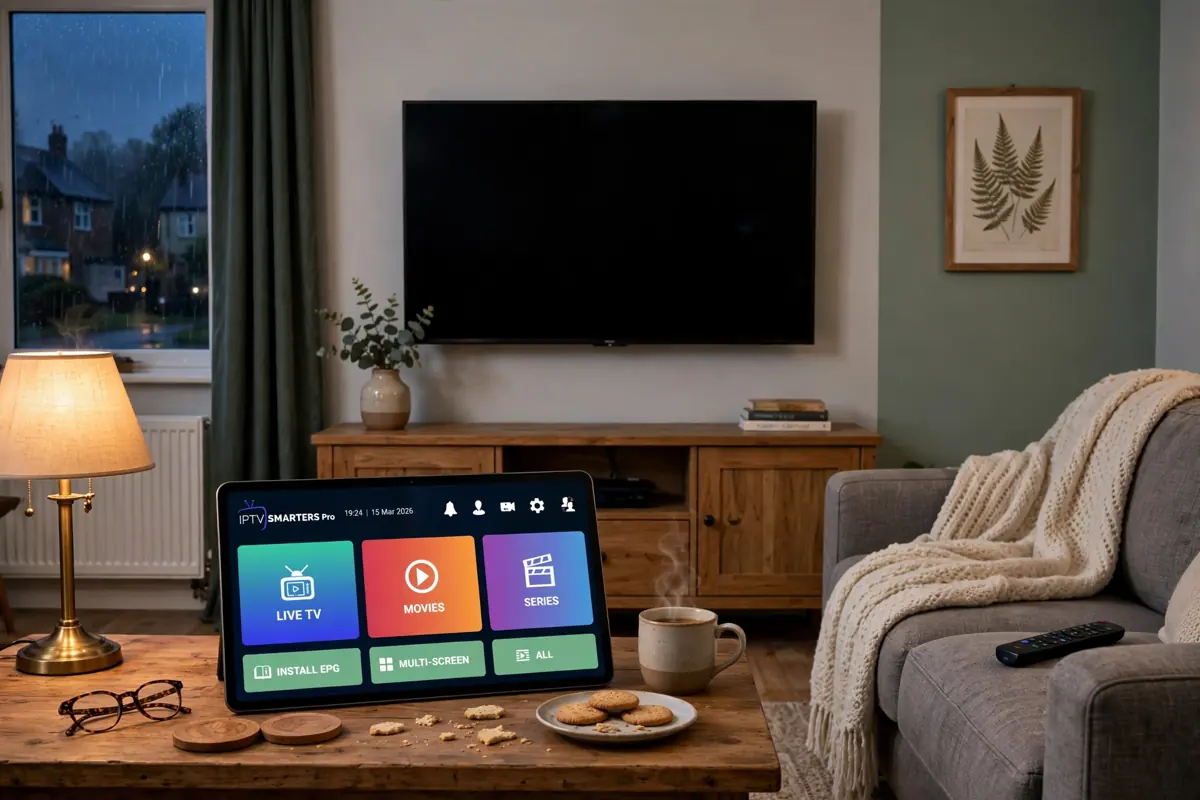
You tap a channel — and then nothing. A black screen, sometimes with sound.
Quick answer: A black screen usually means the stream is connecting but your device cannot show it — most often the wrong decoder, a stale cache, or a VPN or ISP block. Work the fixes in order: restart, check the playlist, switch the decoder, clear the cache, check internet and VPN, then reinstall.
Key points:
- Black screen with sound points at the decoder.
- Black on every channel points at the app, login or connection; black on one channel points at that channel.
- Change one setting at a time and test the same channel, so you know which fix worked.
- Clear cache before clear data — data wipes your login.
- If the same login plays on a phone but not the TV, the fault is the TV, not your subscription.
Checked on 24 November 2026. Fix steps follow current IPTV Smarters Pro guides; IPTVUK details follow its own live site.
IPTVUK at a glance
- Channels55,000+ live UK & international channels
- On demand195,000+ movies and series on demand
- Picture quality4K and Full HD with Anti-Freeze Technology 9.1
- Catch-up7-day catch-up TV included
- Plans£12.99 a month, £24.99 for 3 months, £49.99 for 12 months
- Two screens2 connections included on the 12-month plan
Free trialTry before you pay — start a free trial tonight
First, work out which black screen you have
The fix depends on the symptom, so diagnose first — it saves you reinstalling an app that was never the problem.
Open three channels in three categories — BBC One, a sports channel and a film channel. If all three are black, the fault sits in the app, the login or the connection. If only one is black, that channel itself is down — report it and move on. Check whether other apps stream normally on the same device. If those struggle too, the problem is your internet or the device. Finally, listen: a black screen with commentary still playing is a decoder fault, fixed in Fix 3. No sound, on a channel that worked yesterday, points at the playlist or the provider.
| What you see | Most likely cause | Start with |
|---|---|---|
| Black screen, sound playing | Decoder cannot draw the stream | Fix 3 — switch decoder |
| Black on every channel, no sound | Login, playlist or connection | Fix 1, then Fix 2 |
| Black on one channel only | That channel is down | Try others; report it |
| Black after the app updates | Corrupt cache or bad update | Fix 4 — clear cache |
Fix 1 — Close the app properly and restart it
Force-closing and reopening the app clears the temporary glitches behind most one-off black screens.
Do not just press Home — that only minimises the app. Force-close it: on a Firestick, go to Settings > Applications > Manage Installed Applications > IPTV Smarters Pro > Force Stop, then open the app again. On Android TV the option sits under Settings > Apps; on a phone, swipe the app away from recent apps. If the picture is still black, restart the device — unplug a Firestick or Android box for a full minute. Test the same channel again.
Fix 2 — Check your playlist, portal and login
If the app opens but nothing plays, the playlist may not have loaded properly — and a half-loaded playlist looks exactly like a broken app.
First, retype your login details by hand — they are case-sensitive, and copying them can add an invisible space that breaks the login. Check the server address too: it normally begins with http:// and may end with a port number, such as :8080. Next, use the reload option in the app so Smarters downloads the lists again, and give it a minute on a slower device. If your subscription has just renewed, the old playlist can linger: log out, log back in, and let the lists rebuild. Also set the date, time and time zone to automatic. Our guide to films not playing while live TV works covers the case where only one section fails.
Fix 3 — Switch the decoder and the stream format
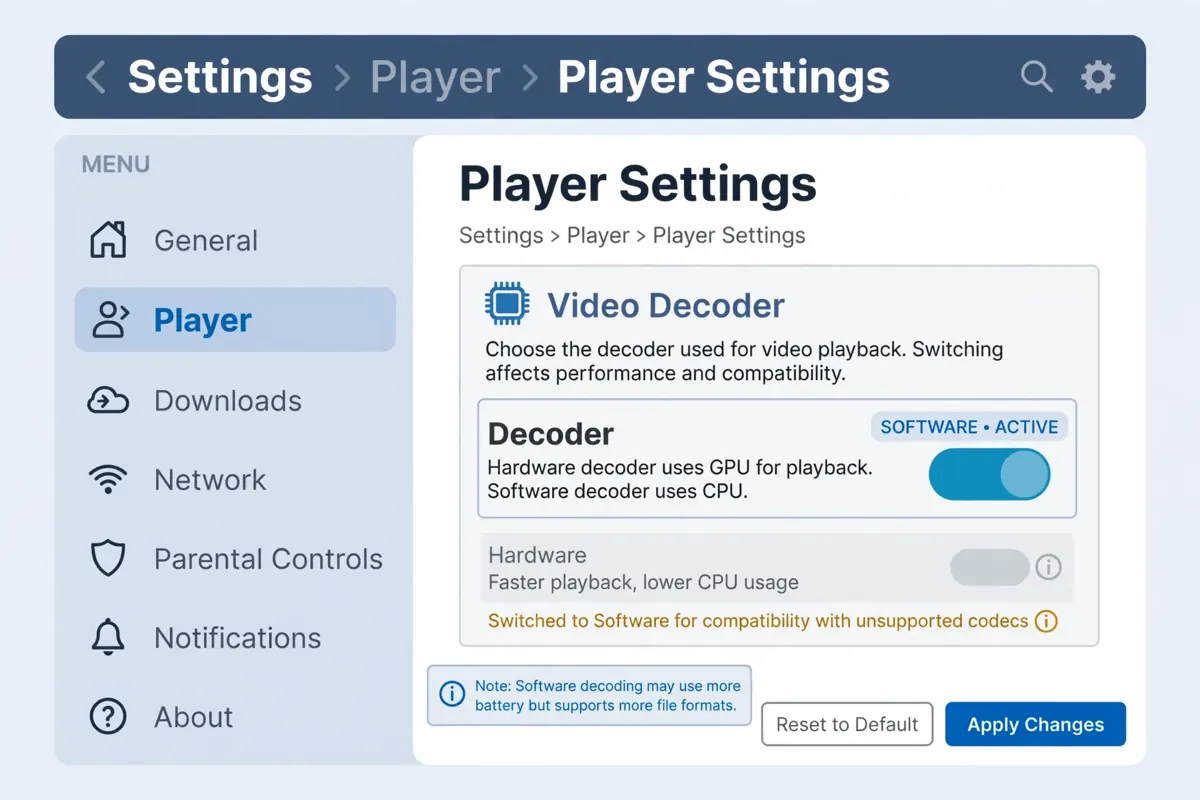
This is the single most effective black-screen fix, because a black screen with sound is almost always a decoder that cannot handle the channel's codec.
Smarters can decode video with your device's hardware chip, or a software decoder, which is slower but far more forgiving of unusual formats. When a channel broadcasts in 10-bit HEVC or high-bitrate 60fps video, a cheaper TV chip or older Firestick can fail to build the picture at all, while the audio sails through. Open Settings > Player Settings, find the decoder for Live TV, and switch it: hardware (HW) to software (SW), or the reverse. Then test the same channel. While you are there, try the stream format too: MPEG-TS (.ts) to HLS (.m3u8), or the reverse. Change one setting at a time. If HD plays but 4K stays black, drop to HD.
Fix 4 — Clear the cache (not the data)
A bloated or corrupt cache is the most common cause of a black screen after an app update.
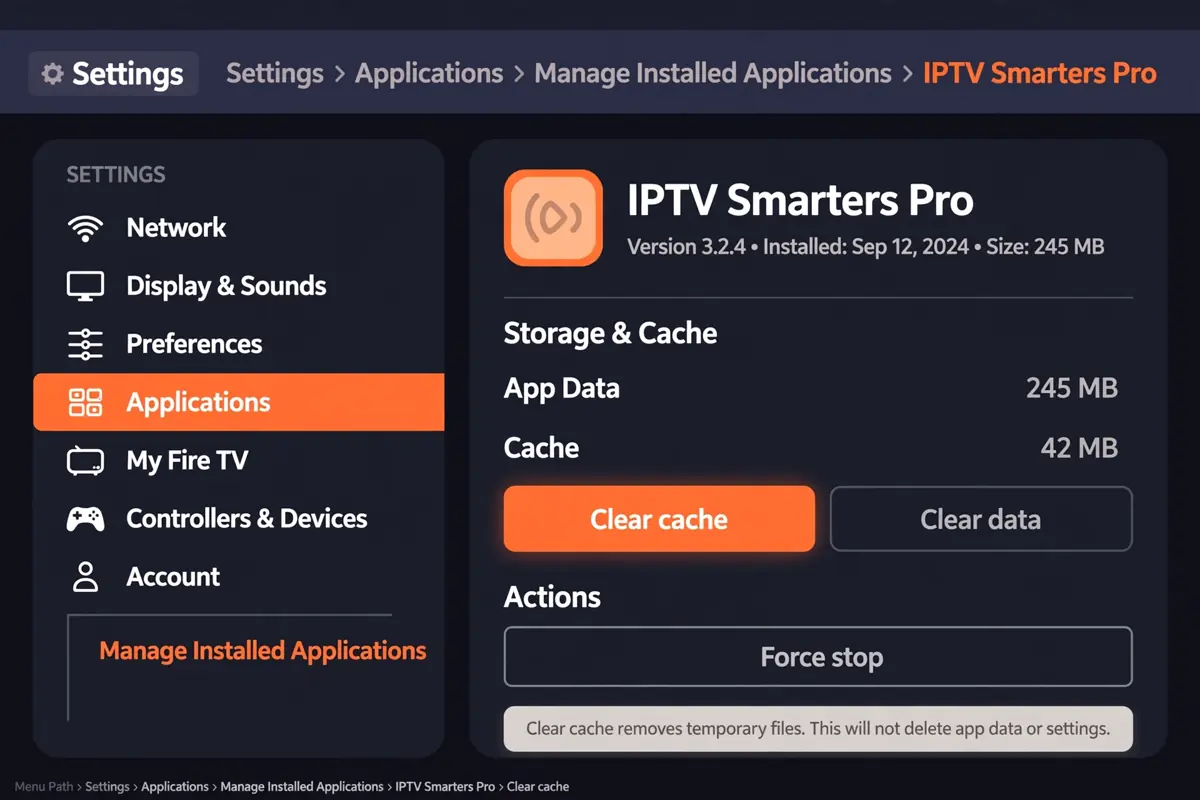
On a Firestick, go to Settings > Applications > Manage Installed Applications > IPTV Smarters Pro > Clear cache. On Android TV or Google TV, the path is Settings > Apps > IPTV Smarters Pro > Storage > Clear cache. On an iPhone there is no clear-cache button, so reinstalling the app is the equivalent step. Stick to Clear Cache first — Clear Data logs you out and wipes your playlist setup. Then reopen the app and test the same three channels. Clear the cache every few months.
Fix 5 — Check your internet, VPN and ISP
If the picture is black on every channel, or only at peak times, the stream may never be reaching your device.
Run a speed test on the television itself at 8pm: you need around 10 Mbps for HD and about 25 Mbps for 4K. If other apps buffer too, restart your router — unplug it for 30 seconds — then switch the TV to wired Ethernet or 5 GHz Wi-Fi instead of crowded 2.4 GHz. Next, turn your VPN off and test again: a VPN can route your stream through a server your provider blocks, or one too slow for video. The reverse is also true — if your provider throttles video, a VPN can sometimes restore it — so test both ways. UK broadband filters are a real cause too: Sky Broadband Shield, BT Web Protect, Virgin Media Web Safe, EE Content Lock, TalkTalk HomeSafe and Plusnet Safeguard can all block IPTV traffic, so turn your provider's filter off for a test. See our EPG one-hour-out fix for a related settings fault.
Still stuck on a black screen? The fault may be your provider, not your setup. Start a free IPTV trial with IPTVUK and test the same channels on your own TV tonight — 55,000+ channels, 4K with Anti-Freeze 9.1. Then choose your plan on the pricing page, or order on WhatsApp.
Fix 6 — Uninstall and reinstall the app
When every step above has failed, a clean reinstall clears whatever a cache wipe misses.
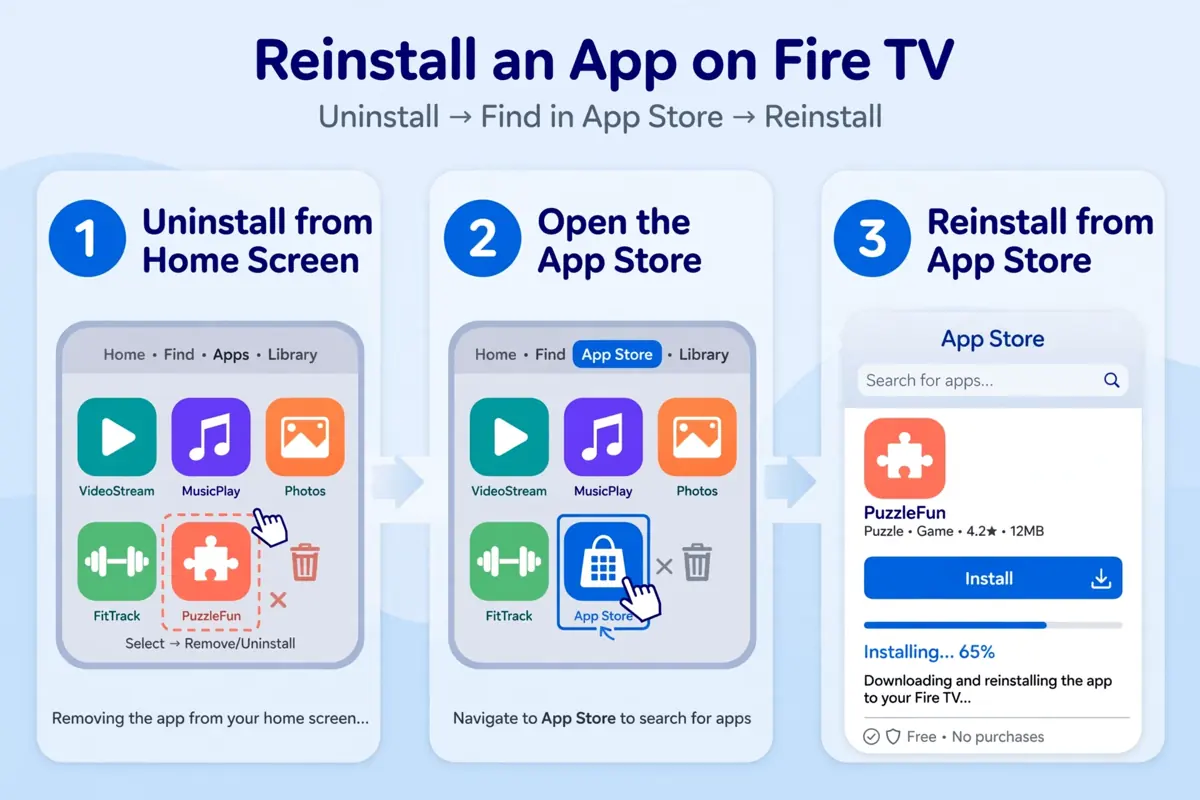
Uninstall IPTV Smarters Pro completely, restart the device, and install a fresh copy only from a verified listing — the app store on your Firestick, Android TV or phone, or the developer's official site. Same-name listings exist — do not install from one you cannot verify. After the fresh install, log in again and let the playlists load fully before testing. A reinstall most often rescues a black screen that survived the cache clear, decoder switch and VPN test. If the fresh install shows the same black screen, the app is innocent. Setting up from scratch? Our Firestick installation guide walks through each step.
Fix 7 — Test the same login on another device
This test tells you whose fault the black screen is — yours, your device's, or your provider's.
Log in with the same details on a different device on the same Wi-Fi — your phone is the easiest. Open the exact channel that was black on the TV. If it plays on the phone, your subscription and provider are fine, and the fault is the TV or stick: go back to the decoder switch, and try forcing the output resolution down to 1080p instead of Auto or 4K. If the channel is black on the phone too, the fault is upstream: the provider's server, the playlist or the connection limit. Try the phone on mobile data — if it plays on 4G or 5G but not on home broadband, your ISP is blocking the stream. A stream that stops within seconds often means another device is using the same connection.
Fix 8 — Contact your provider (and know when to leave)
If the same login is black on two devices, on two networks, after a reinstall, the fault is not in your house.
Tell them exactly what you tested: the channel name, the time it failed, that it failed on both the TV and the phone, and that the decoder switch, cache clear and reinstall made no difference. A provider worth keeping will check the channel, restart the stream or move it to another server, and tell you when it is back. Ask whether the channel is down, whether your playlist needs refreshing from their side, and whether your account has hit its connection limit. If they cannot answer, or the same channels keep going black week after week, that is the provider telling you something — a service that cannot keep its streams up will not get better on its own. The honest fix is then a different provider, not a seventh reinstall. Compare options in our best IPTV UK guide and IPTV subscription buyer's guide.
Verdict: most black screens are fixed in under ten minutes
A black screen feels like a dead subscription, but it almost never is. The stream is arriving and the app simply cannot show it — the decoder is wrong, the cache is corrupt, or the VPN is in the way. Work the steps in order and test the same channel after each step.
IPTVUK: 55,000+ channels, 195,000+ films and series, 4K with Anti-Freeze 9.1, 7-day catch-up, 2 connections — £12.99 a month, £24.99 for 3 months, £49.99 for the year, free trial, no contract.
Frequently Asked Questions
Why is my IPTV Smarters screen black but I can hear sound?
The stream is arriving and the audio is playing, but your device's hardware decoder cannot draw the video — usually the channel uses a codec the chip does not support. In Player Settings, switch the decoder to software. That single toggle fixes most black-screen-with-sound cases.
Why is IPTV Smarters black on every channel?
It points at the app, the login or the connection. Turn off your VPN, clear the app cache, and retype your login details by hand. If it is still black, reinstall, then test the same login on your phone. That test separates a device fault from a provider fault.
Does clearing the cache fix the IPTV Smarters black screen?
Often, yes — especially when it started after an app update. On a Firestick go to Settings, then Applications, then Manage Installed Applications, then IPTV Smarters Pro, then Clear cache. Clear cache, not Clear data, which logs you out. Give the app a full minute to reload the lists after clearing.
Can a VPN cause a black screen on IPTV Smarters?
Yes. A VPN can route your stream through a server your provider blocks or one too slow to carry video. Turn the VPN off and test the same channel — if the picture returns, the VPN was the cause. If your ISP throttles video, a VPN can occasionally help instead.
Why does one channel show a black screen while others work?
That channel itself is the problem — it is down, or broadcasting in a format your device cannot decode. Try the HD version instead of 4K, and if it is still black, report it to your provider. Reinstalling will not help, because the fault is not in your app.
Should I reinstall IPTV Smarters Pro to fix a black screen?
Not first. Try the quick steps — restart, check the login, switch the decoder, clear the cache — before you reinstall, because a reinstall deletes your saved users and forces a full playlist reload. Reinstall only when those steps have all failed, and only from a verified app store listing.
Sources
- IPTV Smarters Pro troubleshooting guides (checked 24 Nov 2026) — decoder, stream format, cache, VPN, reinstall.
- Amazon Fire TV help — clearing app cache on Fire TV.
- IPTVUK — Pricing (ukiptv.site/pricing.html; £12.99/£24.99/£49.99, 2 connections on the 12-month plan, checked 24 Nov 2026).
Done fighting the black screen? Try IPTVUK free on your own TV tonight — start a free trial — then pick your plan on the pricing page or order on WhatsApp (+44 7735 089156). Our best IPTV subscription guide covers the checks worth running first.
Ready to test it on your own TV?
Start with the 1 Month Pass at £12.99, watch a live match, and judge the stream yourself.
Your login details will be with you in about five minutes.