IPTVUK BLOG • 2026 GUIDE
EPG & Catch-Up TV on IPTV: What They Are and How to Set Them Up (UK 2026)
An EPG is the programme guide that shows what is on now and next on your IPTV channels, and catch-up TV lets you replay shows that have already aired — on IPTVUK, for up to 7 days back.
Both run through the same guide data, so once the EPG is set up correctly, catch-up usually works with it. This guide explains what each one does, how to set them up in TiviMate and IPTV Smarters Pro, and how to fix a blank guide.
IPTVUK at a Glance
Channels
55,000+ live channels
Movies & Series
195,000+ titles on demand
Catch-up
7-day catch-up on supported channels
Streaming Tech
Anti-Freeze 9.1 for smooth playback
Plans
£12.99 / £24.99 / £49.99 — 2 connections on the 12-month plan
Support
WhatsApp +44 7735 089156
Checked on 27 November 2026. Setup steps follow the player guides linked below.
What Is an EPG on IPTV?
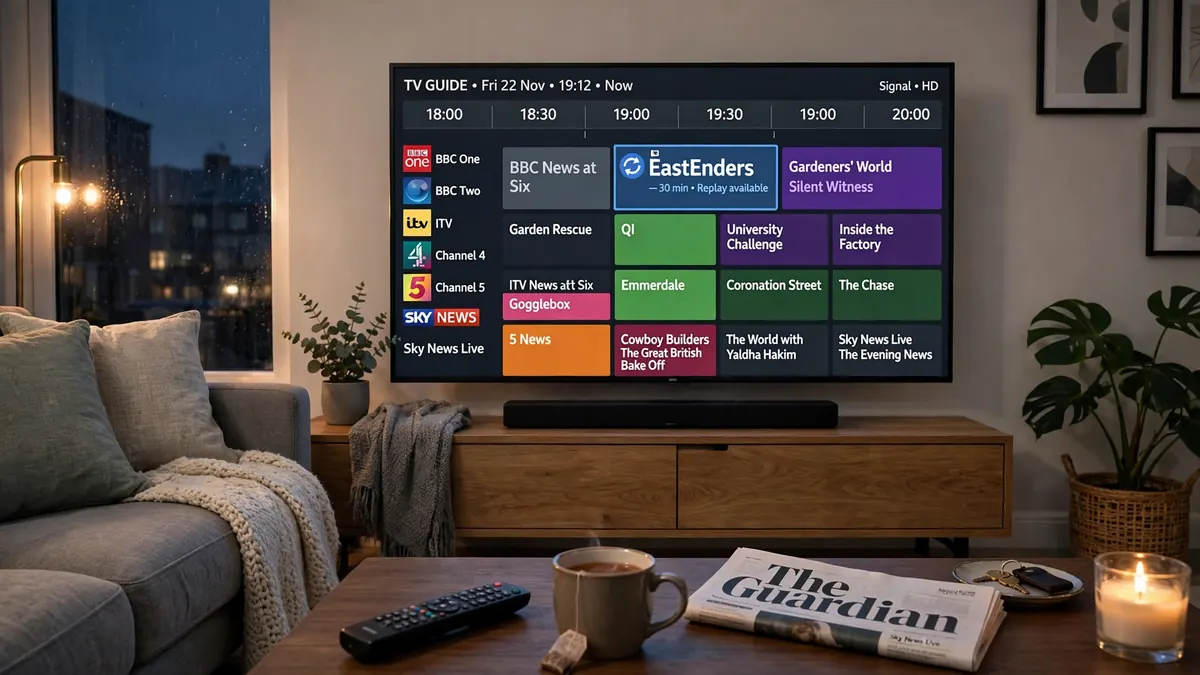
An EPG — Electronic Programme Guide — is the on-screen TV schedule behind your channel list. It shows the programme playing now, what is coming up next, and a short description of each show. On a Firestick or Android TV it is the grid you see when you press the guide button: channels down the left, time across the top.
Your player app does not create this data itself. It downloads a guide file, usually in XMLTV format, from your provider or a public source, and matches the entries to the channels in your playlist. If the file is missing, out of date, or matched to the wrong channels, the guide shows “No information” even though every channel still plays. A working guide turns channel-surfing into planning: see what is on, jump to a match or a film, and go back to anything you missed.
What Is Catch-Up TV?
Catch-up TV lets you watch a programme after it has already been broadcast, without having recorded it. On supported channels, your provider keeps recent programmes on its server, and your player asks for a programme by its time slot. With IPTVUK, that window is 7 days, so a show from Tuesday can still be played the following Monday.
Not every channel supports catch-up. Sports, news and the main UK broadcasters usually do, while some smaller or international channels may not. Supported channels are marked in the guide or channel list with a small clock or rewind icon — if a channel has no icon and past programmes will not play, it has no archive.
How the EPG and Catch-Up Work Together
The EPG and catch-up are two sides of the same system. Catch-up is organised by programme, so the player needs the guide to know which show aired in which time slot. If the guide is empty or an hour out, catch-up cannot find the right recording. That is why almost every catch-up problem is really a guide problem.
How much set-up you need depends on how your playlist was added. With an Xtream Codes login (server, username, password), the guide usually arrives with the login and catch-up works on supported channels — just run an EPG update once after set-up. With an M3U playlist link, the guide only appears if the link carries a guide address or you add one by hand, and catch-up often does not work, because M3U links rarely carry archive data.
If your provider offers an Xtream Codes login, use it: the guide and the catch-up archive arrive together with the least fiddling, and it is the route every player guide below assumes. With an M3U link you can still add a guide by hand, but catch-up may stay out of reach — ask your provider for Xtream Codes details if catch-up matters to you.
How to Set Up the EPG in TiviMate
In TiviMate, the guide lives in the playlist settings, and with an Xtream Codes login it usually appears on its own. Work through these steps in order, and stop as soon as the guide fills in.
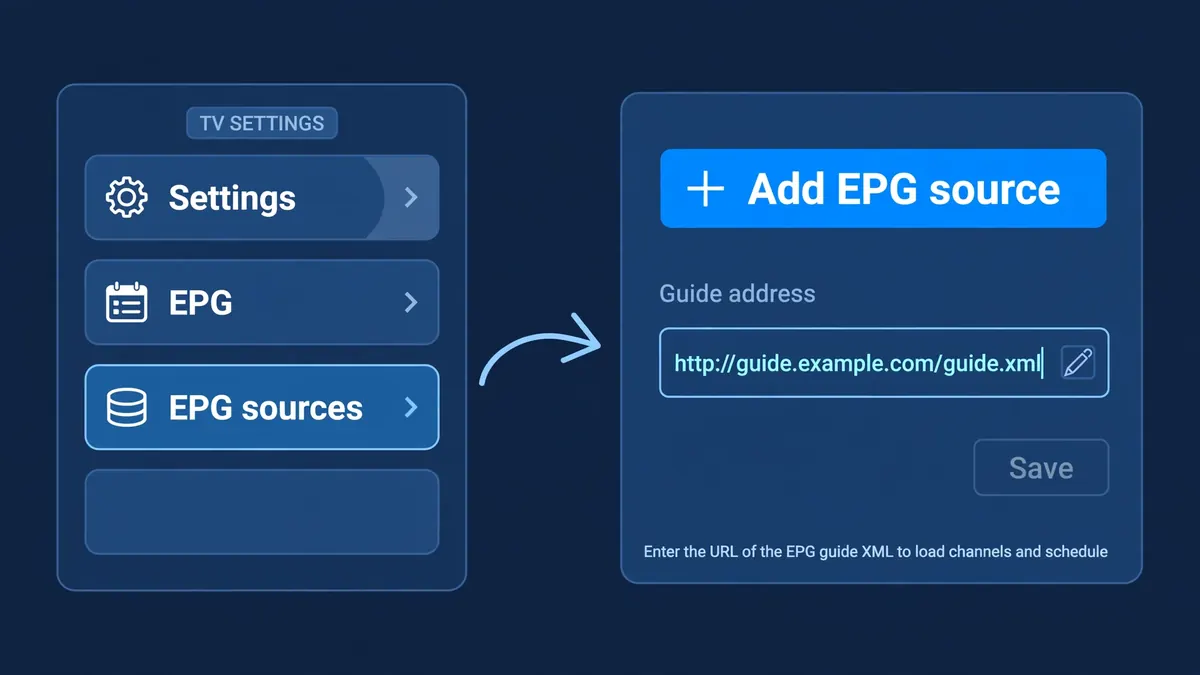
- Check whether the guide is already there. Open TiviMate, go to Settings > Playlists, tap your playlist name, and look for the EPG source entry. If an address is listed, go back, tap Update EPG, and wait two to three minutes.
- Add an EPG source by hand if the list is empty. Go to Settings > EPG > EPG sources, choose Add EPG source, and paste the guide address your provider gave you — usually ending in .xml or .xml.gz, or, on Xtream-style servers, your server address followed by /xmltv.php?username=...&password=... Paste it exactly; one wrong letter breaks the whole guide.
- Run the update and wait. Go back to Settings > EPG and choose Update EPG. A large guide can take a few minutes to download, so leave the app open until it finishes.
- Set the guide to update itself. In the same EPG settings screen, set the update interval to once a day, so programme times stay accurate.
- Check the time zone. If every programme is an hour early or late, the guide offset is wrong. Set the EPG time offset in the player settings until the times match your clock — our EPG one hour out fix covers it. Never change your device clock to compensate: catch-up works by exact time, and a wrong device clock breaks it.
How to Use Catch-Up in IPTV Smarters Pro
IPTV Smarters Pro has its own catch-up section on the home screen, which makes it the easiest of the popular players for replaying missed shows. You need an Xtream Codes login — catch-up rarely works over a plain M3U link, because that format does not carry the archive information the app needs.
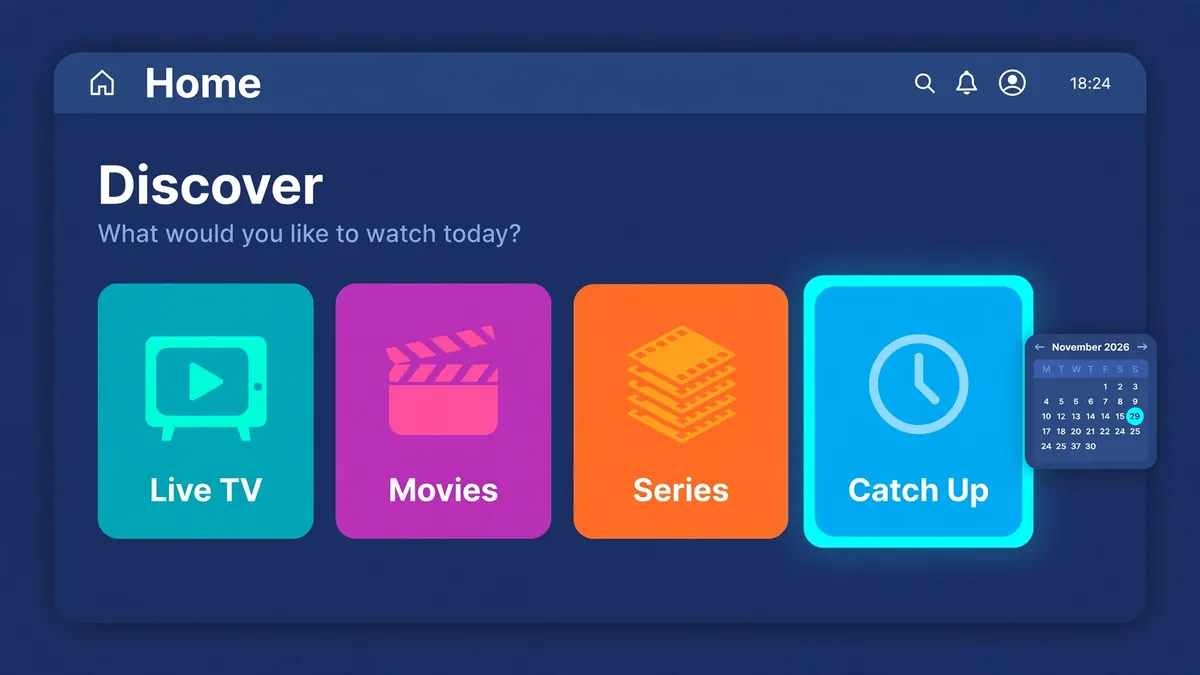
- Refresh first, then open Catch Up. From the home screen, refresh the channels and the guide so the archive list is current, then select the Catch Up tile. Only channels with an archive are listed, so if a channel does not appear, it has no catch-up.
- Pick a category, then a channel. Choose a category such as Sports or News, then the channel you want. The app shows a calendar of the days with recordings — with IPTVUK, that runs 7 days back.
- Choose the day and the programme. Select a date, and that day's programmes appear. Tap the one you want and it plays from the beginning.
- Use the player controls. A catch-up stream behaves like an on-demand video: pause, rewind and fast-forward inside it. It still counts as one of your plan's streams.
How to Replay a Missed Show from the TiviMate Guide
In TiviMate there is no separate catch-up menu — catch-up lives inside the guide itself, which is why a working EPG matters so much here. Catch-up is also a TiviMate Premium feature, so if the option never appears, check Premium is active.
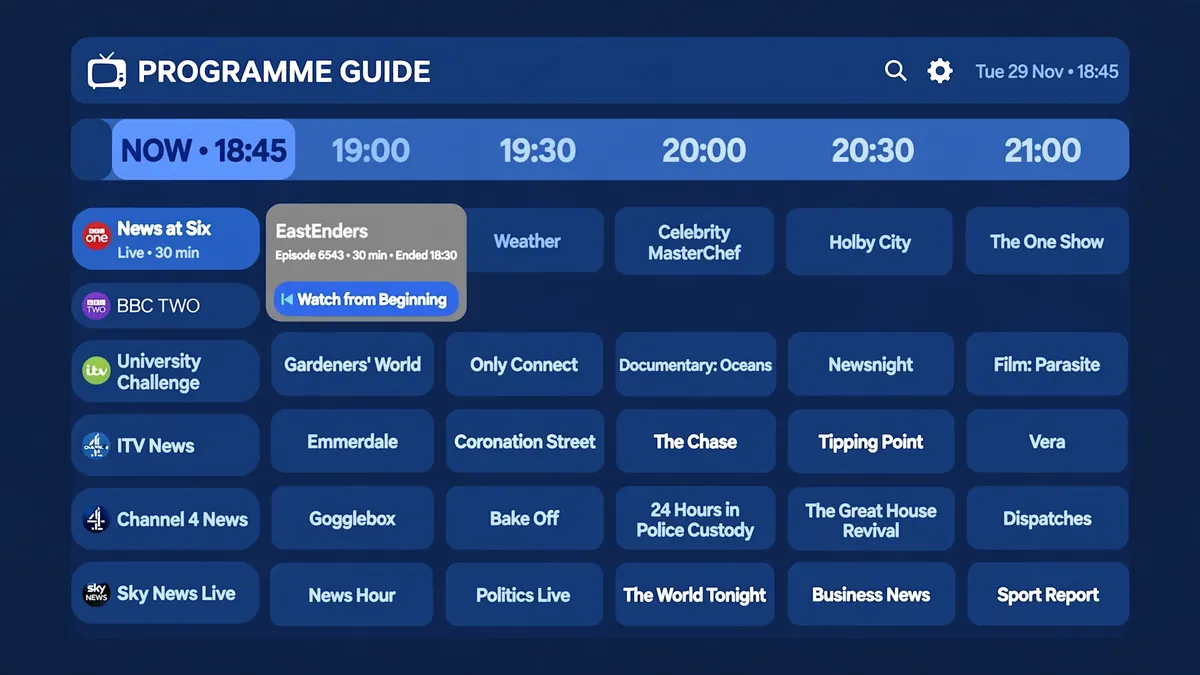
- Open the programme guide — press the Guide button on your remote, or press Up from the main screen — and find a channel with catch-up, marked by a small clock icon or reverse arrow.
- Scroll back in time. Highlight the channel and hold the Left button to scroll back through past hours and days. Past programmes appear in a different colour, usually grey or darker.
- Select the programme and press OK. Choose the show you missed, press OK, and select Watch from Beginning. The catch-up stream starts from the start of that broadcast.
If the programme starts at the wrong point, the guide is offset from the archive: correct the EPG time offset, refresh the guide, and open it again. If it will not play at all, check you signed in with Xtream Codes rather than M3U, and that the channel supports catch-up. A programme that aired more than 7 days ago is outside IPTVUK's catch-up window.
Want the guide and catch-up on every channel? IPTVUK includes a full EPG and 7-day catch-up on supported channels, with 55,000+ channels and 195,000+ movies and series on Anti-Freeze 9.1. Try it on a free trial — see IPTVUK pricing or start your free trial.
Why Is My EPG Blank or an Hour Out?
A blank guide usually means the EPG source is missing, wrong or expired — add the current XMLTV address from your provider under Settings > EPG > EPG sources, then run Update EPG and wait a few minutes. If every programme is an hour early or late, the EPG time offset is wrong: adjust it in the player settings until the times match your clock, then refresh the guide. Our EPG one hour out fix walks through that step by step — never change your device clock to compensate, because catch-up works by exact time and a wrong device clock breaks it.
Do You Need a Provider That Includes EPG and Catch-Up?
Yes, in practice. A provider that does not supply guide data leaves you channel-surfing blind, and one without a catch-up archive means a missed programme is simply gone. Both depend on the provider's server, so no player app can add them.
When you compare services, ask three questions before you pay: does the plan include a full EPG with its Xtream Codes login, does it include catch-up and for how many days, and does it cover the channels you actually watch? A cheap plan without a guide is a false economy. Our IPTV buyer’s guide lists everything else worth checking, our IPTV prices guide shows what a fair UK price looks like, and our best IPTV subscription round-up compares the leading options. Our Firestick IPTV set-up guide walks through installing TiviMate and Smarters Pro.
IPTVUK answers all three directly: a full EPG with every plan, 7-day catch-up, 55,000+ channels, 195,000+ movies and series, Anti-Freeze 9.1, and 2 connections on the 12-month plan. See our IPTV vs Sky and Virgin Media comparison or our best IPTV UK 2026 guide. If films will not play while live TV works, our VOD fix guide covers that separately.
Verdict: Set Up the Guide Once, and Catch-Up Takes Care of Itself
An EPG is your IPTV schedule, catch-up is your safety net for missed shows, and the two only work when the guide is set up correctly. Sign in with Xtream Codes so the guide arrives automatically, add the EPG source by hand if you use an M3U link, run an update, set daily updates, and check the time offset. Do that once and the grid stays accurate, catch-up replays anything from the last 7 days, and you stop missing programmes you wanted to watch.
Frequently Asked Questions
What is an EPG on IPTV?
An EPG, or Electronic Programme Guide, is the on-screen TV schedule showing what is playing now and next on each channel, usually with a short description of each programme. Your player downloads this data as an XMLTV guide file from your provider and matches it to your channel list.
What is catch-up TV on IPTV?
Catch-up TV lets you replay a programme after it has aired, without recording it first. Your provider keeps recent broadcasts on its server and your player asks for a programme by its time slot. On IPTVUK the window is 7 days, and only channels marked with a clock or rewind icon can be replayed.
How do I set up the EPG in TiviMate?
With an Xtream Codes login, the guide normally arrives automatically — go to Settings, then EPG, and run Update EPG. With an M3U playlist, go to Settings, EPG, EPG sources, choose Add EPG source, paste the XMLTV guide address from your provider, confirm, and run Update EPG. Then set daily updates.
How do I watch catch-up on IPTV Smarters Pro?
Open the Catch Up tile on the home screen, pick a category and a channel, choose a date, then tap the programme — it plays from the beginning. You need an Xtream Codes login, because catch-up rarely works over a plain M3U link, and each catch-up stream counts as one of your plan’s screens.
Why is my EPG blank in TiviMate?
Usually no EPG source is set, or the guide address is wrong or expired — guide addresses contain your login details, so a password change or plan renewal can break the old one. Add the current address from your provider under Settings, EPG, EPG sources, then run Update EPG and wait.
Why is my EPG an hour out?
Your EPG time offset or time zone is wrong, so every programme appears an hour early or late — and catch-up will start programmes at the wrong point too. Adjust the EPG time offset in your player settings until the times match your clock, then refresh the guide. Never change your device clock to compensate.
Try the guide and catch-up for yourself: IPTVUK gives you 55,000+ channels, 195,000+ movies and series, Anti-Freeze 9.1 and 7-day catch-up on supported channels, with plans from £12.99 and 2 connections on the 12-month plan. Start your free trial, see the full pricing, or message us on WhatsApp at +44 7735 089156 for help with the EPG.
Sources
- TiviMate EPG setup — Settings, Playlists, EPG, Add EPG Source; Xtream Codes automatic, M3U needs a manual XMLTV URL (tvimate.co)
- How to Update EPG on TiviMate — Settings, EPG, Update EPG; EPG sources and XMLTV format (televsio.com)
- TiviMate EPG Setup Guide 2026 — Xtream Codes and M3U methods (winott.com)
- How to Add EPG to TiviMate — finding the EPG link, adding the source, daily updates (iptvtips.com)
- How to Set Up Catch-Up on TiviMate, IPTV Smarters and XCIPTV — TiviMate scroll-back, Smarters Pro Catch Up tile (iptvfiesta.com; iptvhelpcenter.com)
- How to Use Catch-Up TV — TiviMate Watch from Beginning, Smarters Pro calendar view (iptvnords.com)
- IPTV Smarters Pro Multi-Screen and Catch-Up Guide — 7-day catch-up, Xtream Codes requirement (smarters8k.co.uk)
- IPTVUK — service facts: 55,000+ channels, 195,000+ VOD, Anti-Freeze 9.1, 7-day catch-up, plans £12.99/£24.99/£49.99 (ukiptv.site)