IPTVUK BLOG • TROUBLESHOOTING
IPTV Guide One Hour Out? Fix the Wrong EPG Time in the UK
Your channels play perfectly, but the programme guide says the news is on at seven when it is really on at eight — or the other way round. Every show sits exactly one hour from where it should be, reminders fire on the wrong programme, and catch-up starts at the wrong point. If it started around the UK clock change, the cause is almost never your subscription: it is a time-zone mismatch somewhere between your device, your IPTV app and your provider’s guide feed. This guide finds which one is wrong, fixes it in order, and shows you how to tell when the fault is your provider’s feed instead.
The Quick Answer
A guide that is exactly one hour out means two clocks disagree. Check your device’s time zone first — it must read Europe/London with automatic date and time switched on. Then check your IPTV app’s EPG offset and set it back to zero. Then refresh the guide data. If the guide is still wrong on every device after all three, your provider’s feed has not been updated for the clock change.
Checked on 13 November 2026. UK clocks went back one hour on Sunday 25 October 2026, when British Summer Time ended and Greenwich Mean Time began.
Why One Hour, Exactly?
A guide that is wrong by exactly one hour is a signature, not a coincidence. Random faults give random errors — a guide that is two hours out, or wrong on some channels and right on others, points somewhere else entirely. One hour is the size of the gap between British Summer Time and Greenwich Mean Time, and it is also the gap between the UK and mainland Europe.
Behind every guide sit two clocks. One lives on your device — your Firestick, Smart TV or Android box — and the other lives in the programme data your provider sends. When the clocks changed on 25 October 2026, every clock in that chain had to move together. If your device moved but the guide feed did not, or your app is adding an extra hour on top of the correct time, the whole guide shifts by exactly one hour while the channels themselves keep playing normally.
Work Out Which Clock Is Wrong Before You Change Anything
Do not change settings at random — the symptom tells you where the hour is being lost, and the fix follows from it.
| What you see | Where the fault is |
|---|---|
| Every channel is exactly one hour out, and it started around 25 October 2026 | A time-zone or daylight-saving mismatch. Work through the device and app fixes below, in order. |
| Only one or two channels are wrong, by any amount | Stale or faulty guide data for those channels. Refresh the EPG data first; if it stays wrong, the fault is in your provider’s feed. |
| The guide is right but catch-up starts at the wrong point | The guide itself is correct and the catch-up timing is the problem. Restart the app, then check the same programme on a second device before contacting support. |
| Times are wrong by more than an hour, or jump around | Your device’s date or time zone is set to the wrong country or region, not just the wrong hour. Check the full time-zone setting, not only the clock display. |
| The guide is empty or says “no information” | The guide data has not loaded at all. This is a different fault from a one-hour offset — refresh the playlist and guide data, and check your internet connection. |
Fix 1: Set Your Device to the Correct UK Time Zone
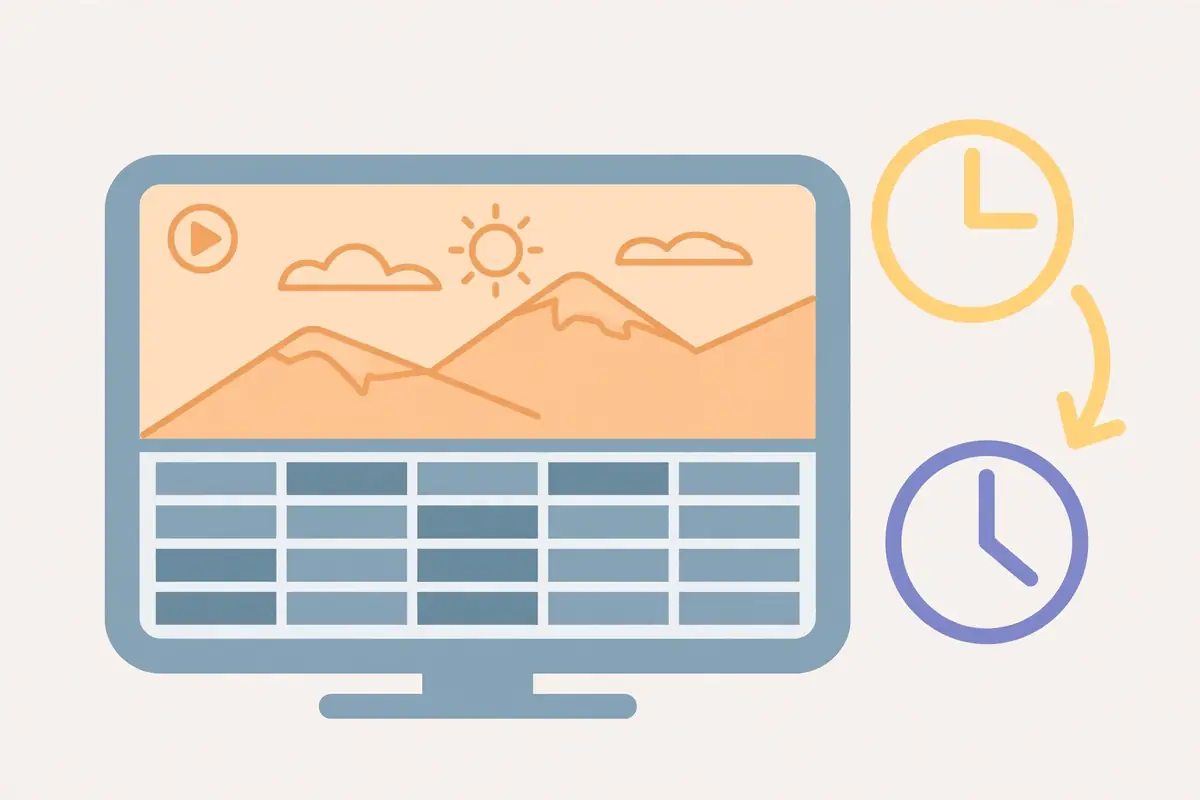
Most one-hour guide errors start here, because the IPTV app trusts whatever time zone the device reports.
- 1. Open the date and time settings. On a Fire TV Stick this is Settings > Device & Software > Date and Time; on Samsung and LG Smart TVs and Android boxes it sits under General or Device Preferences.
- 2. Switch on automatic date and time. Automatic mode pulls the correct time from the internet and adjusts for the UK clock change on its own.
- 3. Check the time zone reads Europe/London, and the date is right. A device set to a mainland European time zone sits exactly one hour ahead of the UK, and a wrong date pushes guide data onto the wrong day entirely.
- 4. Restart the device after changing the setting. Some apps only read the time zone when they start, so a change made while the app is running may not take effect until the next launch.
If the clock on your TV’s own home screen is right but the guide inside the IPTV app is still an hour out, the device is not the problem — the fault sits inside the app. Move on to the next fix.
Fix 2: Check the EPG Offset Inside Your IPTV App
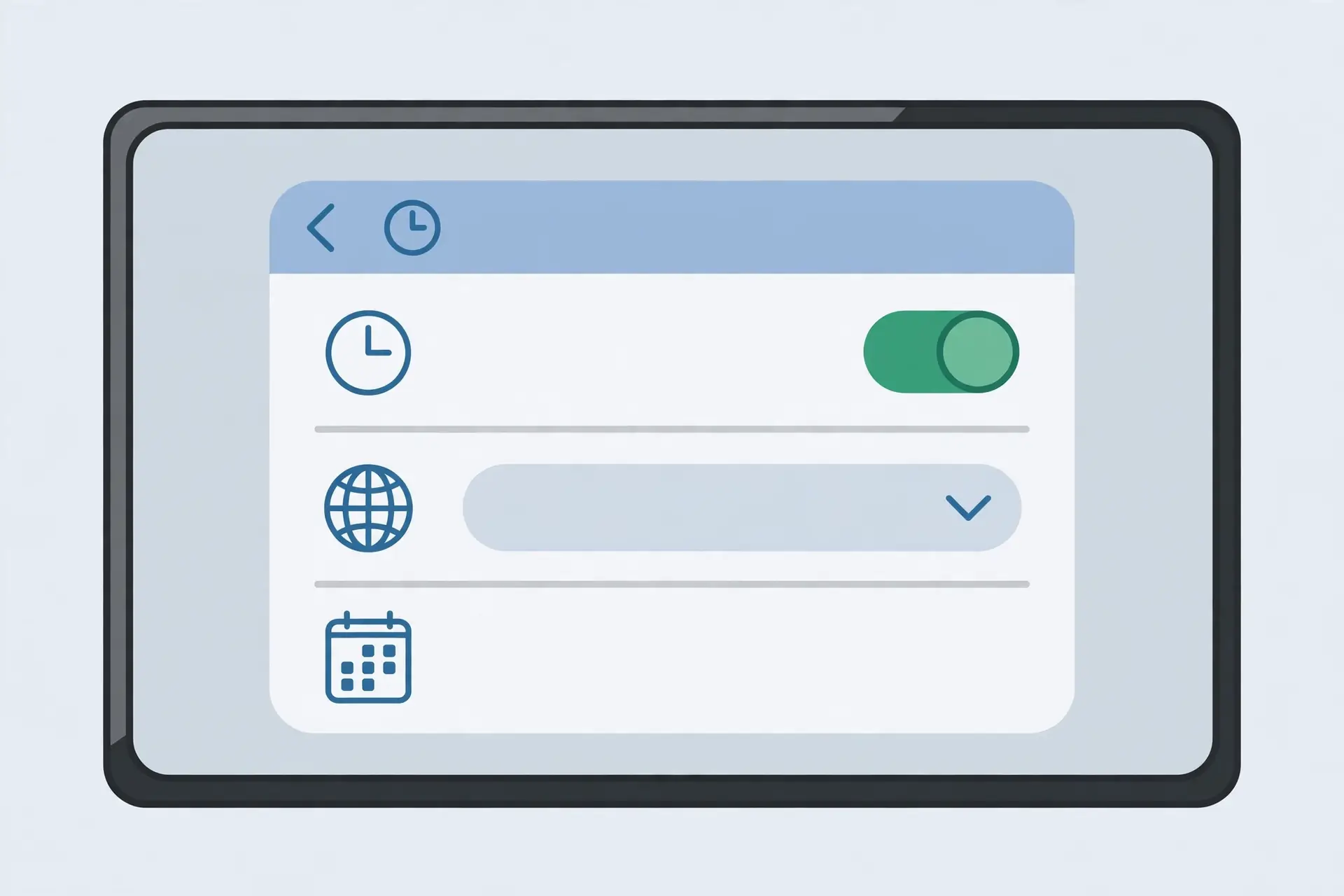
IPTV player apps have their own guide settings, separate from the device clock. An offset left over from a previous setup adds an hour on top of the correct time.
- 1. Open the app’s EPG or guide settings. In TiviMate this is Settings > EPG; in IPTV Smarters and similar players look under Settings for an EPG or programme-guide section. The exact menu name varies by app, but every mainstream player has one.
- 2. Look for a time offset, time shift or time-zone option. It may be labelled “EPG time offset”, “time shift” or similar. If it is set to +1 hour, -1 hour or anything other than zero, set it back to zero (or “auto” where the app offers it) and save.
- 3. Check for a separate time-zone setting inside the app. Some players let you pick a time zone independently of the device. If it is set to anything other than Europe/London, change it to match the device.
- 4. Force the guide to reload. Use the app’s “refresh EPG”, “update guide” or “clear EPG data” option, then let the guide download again from scratch. A guide cached before the clock change keeps showing the old times until it is refreshed.
Try it on a channel whose schedule you know by heart — the evening news on BBC One, for instance. If the guide now lines up with what is actually on screen, you are done.
Fix 3: Refresh the Playlist and the Guide Feed
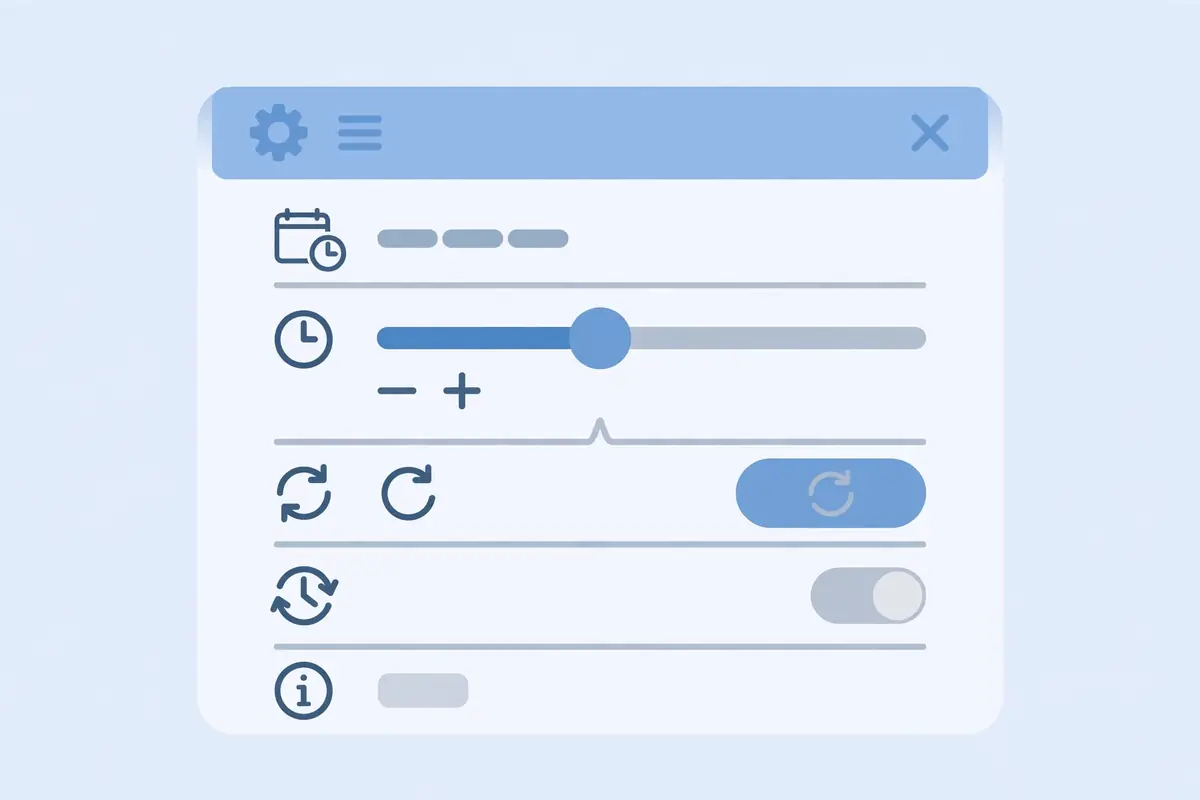
If the device and the app are both set correctly and the guide is still wrong, the programme data itself may be out of date. Your provider sends guide data alongside the channel list, and that feed has to be updated for the clock change too.
- 1. Refresh the playlist in the app. Use the “refresh playlist” or “update channels” option, which re-downloads the channel list and its linked guide source together.
- 2. Clear the app’s cached guide data if the option exists. Listings downloaded before 25 October 2026 carry the old summer times, and they stay wrong until the cache is cleared.
- 3. Wait a few minutes, then check again. A full guide reload on a large channel list takes several minutes, and checking too early can make a fixed guide look broken.
- 4. Try a second device. Sign in on your phone or another TV. If the guide is right there and wrong on the first device, the first device still holds stale data. If it is wrong everywhere, the feed itself is the problem.
When the Provider’s Guide Feed Is the Problem
Sometimes every setting on your side is correct and the guide is still an hour out on every device. That means the feed your provider sends has not been corrected for the UK clock change, and no setting on your television can fix it.
Before blaming the provider, check the spread: a feed problem normally throws the whole guide out at once, while a few wrong channels point to individual channel data. Then ask the provider’s support outright whether their EPG feed has been corrected for GMT — a provider that replies quickly and fixes it within a day is just working through a seasonal update.
But the reply itself is revealing. A guide that stays an hour out for days after the clocks change, with no answer from support and no fix, shows a provider that is not looking after its service. The guide is part of what you pay for: it is how you find programmes, set reminders and use catch-up. If a provider cannot keep its own timetable right twice a year, it is fair to wonder what else is being left alone — and to try an alternative before your next renewal. A free trial is the right way to do that: set it up on your own device, open the guide, and compare it with the programme actually playing. If the guide is right on the trial and wrong on your current service, one evening has given you the answer.
Try it tonight: start with the free trial and test the service on your own TV — live channels, the film library and the 7-day catch-up guide — then compare the three plans on the pricing page (£12.99 a month, £24.99 for three months, £49.99 for the year), or order by messaging us on WhatsApp.
How to Stop It Happening at the Next Clock Change
The UK clocks change twice a year — forward in March, back in October — so this problem returns on a schedule. Three habits keep it from coming back: leave automatic date and time switched on, so the device adjusts for both changes itself; keep the app’s EPG offset at zero once the time zone is right, because a leftover offset becomes the next error; and refresh the guide the morning after each clock change, glancing at one known channel. A minute spent twice a year beats a week of missed recordings.
The same filter problem hits other UK broadband providers too — our guides to Plusnet Safeguard blocking IPTV and TalkTalk HomeSafe blocking IPTV cover the same test and switch-off steps for those networks, and our Firestick setup guide walks through installing a player step by step.
Verdict: Device Time Zone, App Offset, Fresh Guide — in That Order
A TV guide that is one hour out after the UK clock change is almost always a time-zone mismatch, fixed in this order: device time zone set to Europe/London with automatic time on, the app’s EPG offset back to zero, and a fresh guide download. If those three checks are right and the guide is still wrong on every device, the fault is your provider’s feed — and how quickly they fix it tells you a lot about the service you are paying for.
IPTVUK carries 55,000+ live UK and international channels and 195,000+ movies and series, streams in 4K and Full HD with Anti-Freeze Technology 9.1, includes a 7-day catch-up TV guide, and backs it with 24/7 UK support. Plans run from £12.99 a month with no long contract, and every plan starts with the same full service.
Frequently Asked Questions
Q. Why is my IPTV guide one hour out after the clocks changed?
The UK clocks went back one hour on 25 October 2026, when British Summer Time ended. If your device, your IPTV app and your provider’s guide feed did not all move together, the guide holds on to the old summer times and every programme shows an hour late or early. Work through the device time zone, then the app’s EPG offset, then a guide refresh.
Q. Is an EPG one hour out a problem with my subscription?
Almost never. The subscription and the channels are normally fine — the streams still play at the right time, and only the times shown in the guide have shifted. It only becomes a subscription problem if the guide stays wrong on every device once your own settings are checked, which means the provider’s guide feed has not been corrected for the clock change.
Q. How do I fix the EPG time on a Fire TV Stick?
Check Settings > Device & Software > Date and Time on the stick first, with automatic time switched on and the time zone reading Europe/London. Then open your IPTV app, find its EPG settings, put any time offset back to zero, and refresh the guide data.
Q. What is an EPG offset in TiviMate or IPTV Smarters?
An EPG offset is a manual adjustment the player adds to guide times, measured in hours, for feeds published in a different time zone. When your device time zone is already right for the UK, the offset should sit at zero — a leftover offset of one hour is one of the most common reasons a guide lands exactly one hour out.
Q. Why is only one channel’s guide time wrong?
One wrong channel usually means stale or faulty guide data for that channel, not a time-zone problem — a time-zone error moves every channel by the same amount. Refresh the EPG data in the app and look again after a few minutes. If that one channel stays wrong while the rest are right, tell your provider, because only they can correct that channel’s feed.
Q. Will the guide fix itself?
It can, but you should not count on it. A provider that updates its feed will put the guide right within a day or two of the clock change, and a fresh guide download will then show the correct times. But guide data already cached on your device does not refresh by itself, and a wrong offset in your app stays wrong until you change it. The three checks in this guide take a few minutes and settle it either way.
Sources
- UK Government — When the clocks change (gov.uk)
- TiviMate — EPG settings (tivimate.com)
- Amazon Fire TV — Date and time settings (amazon.co.uk)
Ready to test it on your own TV?
Start with the 1 Month Pass at £12.99, watch a live match, and judge the stream yourself.
Your login details will be with you in about five minutes.