Virgin Media Web Safe Blocking Your IPTV? How to Switch It Off and Stream Again
Your IPTV worked last night, and this evening every channel hangs on a spinning circle — while your broadband is fine and nothing on your television has changed. If you are on Virgin Media broadband, the most likely culprit is Web Safe, Virgin’s free network filter. It sits between your home and the internet, and when it decides your IPTV service looks risky, it blocks the streams without any warning on the screen. The fix takes about five minutes in your Virgin Media account, and this guide shows you how to prove Web Safe is the cause first, switch the right part off, and get your channels back tonight.
Checked on 11 November 2026. The switch-off steps below follow Virgin Media’s own Online Safety page and the current My Virgin Media layout.
Quick answer: Virgin Media Web Safe can block IPTV because it filters, at network level, the addresses your player connects to. Test it by playing the same channel on your phone over mobile data instead of Wi-Fi — if it plays on mobile data but not on Virgin Wi-Fi, Web Safe is the block. Switch it off in My Virgin Media → My Apps → Web Safe → Overview, turn off Child Safe (and Virus Safe if the channels still fail), wait a few minutes, and reload your player.
What Is Virgin Media Web Safe, and Why Would It Block IPTV?
Web Safe is Virgin Media’s free filter, included with every Virgin broadband package, and it works at the network level — inside your connection, not on any one device. That matters: the filter sits on the line itself, so it applies to everything on your Virgin Wi-Fi at once — your television, your Firestick, your phone and your laptop — with nothing to install and nothing to switch off on the device.
It has two parts. Child Safe blocks websites Virgin considers unsuitable for children, with optional categories and a timer for certain hours. Virus Safe blocks websites that carry viruses, malware or phishing pages. Either one can catch an IPTV service: your player connects to streaming servers and playlist addresses the filter has never seen before, and a cautious filter treats the unfamiliar as a threat.
How to Tell in 30 Seconds Whether Web Safe Is the Problem
Do not change any settings until you have proved the cause — the same symptoms can also come from weak Wi-Fi or a provider outage. Run this one test first.
| Test | What it tells you |
|---|---|
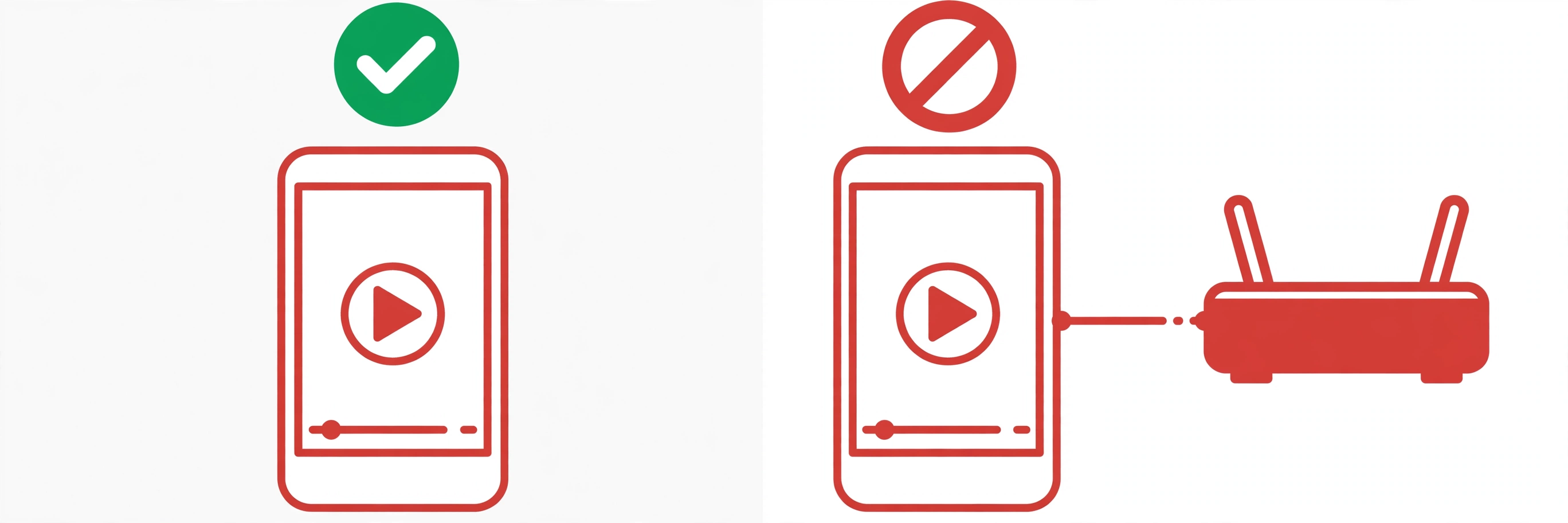
| Same channel on mobile data | Turn off your phone’s Wi-Fi and play the same channel over mobile data. If it plays, your subscription and the service are fine — the block is on your home broadband, and Web Safe is the prime suspect. |
| Same channel on Virgin Wi-Fi | Reconnect to Wi-Fi and try again. If it fails on Wi-Fi but worked on mobile data, the block is inside your home network, not the service. |
| A second device on the same Wi-Fi | Try another device on your Virgin Wi-Fi. If both fail, it is a network-level block — exactly how Web Safe works. If only one device fails, the problem is that device, not the filter. |
| A normal website on Wi-Fi | Open a well-known site such as the BBC on the same Wi-Fi. If it loads, your broadband is up and only certain addresses are being filtered — again, the Web Safe pattern. |
If the mobile-data test passes and the Wi-Fi test fails, you have your answer: something on your Virgin Media connection is filtering the stream — and Web Safe is the filter Virgin puts there by default.
Fix 1: Switch Off Child Safe — and Virus Safe if Needed — in My Virgin Media
This fix solves it for most households. You need the account holder’s My Virgin Media login — not the Wi-Fi password — because only the primary account holder can change Web Safe.
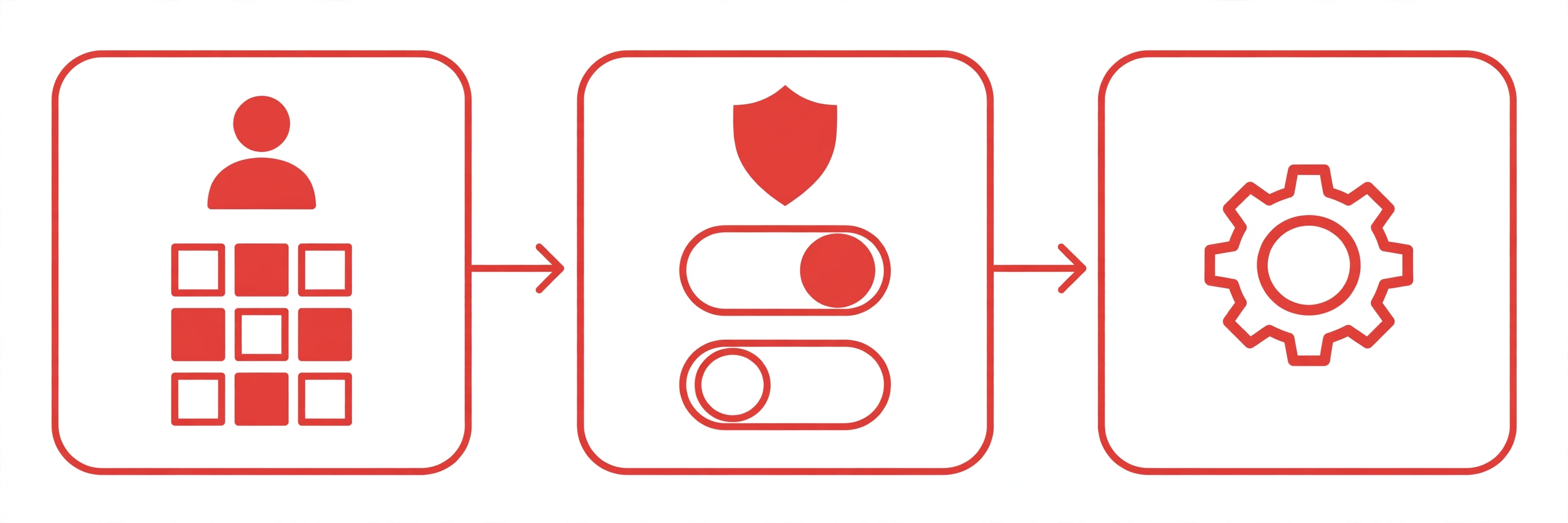
- 1Sign in to My Virgin Media as the account holder.
- 2Click the My Apps tab and select Web Safe, then select Overview to see the two switches: Child Safe and Virus Safe.
- 3Toggle Child Safe off. The setting stays off until you switch it back on.
- 4If the channels still fail after testing, come back and toggle Virus Safe off too — some IPTV servers trip the virus filter rather than the child filter. Virgin recommends keeping Virus Safe on where possible, so switch it off only if Child Safe alone does not fix it.
- 5Allow a few minutes — and up to an hour — for the change to take effect across your connection.
If your My Virgin Media menu looks different, use the newer path instead: Account Settings → Online Security, where the same Web Safe switches live.
Also check the Child Safe timer on the same page: if your channels only fail at certain hours, the timer may be switching the filter back on — switch it off or change its hours so they do not cover your viewing time.
Fix 2: Reload the Player and Re-Test the Channels
Once the settings are saved, wait a few minutes — Web Safe changes can take up to an hour to reach every device. Then force the player to start clean: close the app fully, reopen it, and reload the playlist or refresh the guide. Try a live channel first, then a film, then the programme guide. If all three load, Web Safe was the block and you are done.
If the channels still fail after ten minutes, restart the Hub as well — switch it off at the wall, wait thirty seconds, switch it back on, and wait for the lights to settle before testing again. A Hub restart clears cached filter decisions and forces every device to pick up the new settings. The Virgin Media Connect app shows which devices are on your Wi-Fi, though the Web Safe switches live in My Virgin Media online, not in the app.
Fix 3: If the Settings Do Not Stick, Check These Hub and Account Points
A few cases need one more round of checks, in order:
- ✓Wait the full hour. Web Safe changes are not always instant — if you tested after two minutes and it failed, test again after an hour before assuming the fix did not work.
- ✓Check you changed the right account. Web Safe follows the broadband account, not the device. A secondary login may not save the change, so sign in as the primary account holder and check the toggles are still off.
- ✓Hub 3, Hub 4 or Hub 5 — the filter is the same. Web Safe is a setting on your Virgin account, not on the Hub, so the switch-off steps are identical whichever Hub you have. The Hub only matters for the restart: on a Hub 5, wait for the white light to go solid; on a Hub 3 or Hub 4, wait until the base light stops flashing.
- ✓Check the Hub firewall’s IP Flooding setting. Some long-running community guides report that unchecking IP Flooding in the Hub’s Advanced → Firewall settings helps stubborn streaming blocks. Only touch it if the Web Safe switches alone did not fix it, and note what you changed so you can put it back.
- ✓Rule out the other causes. Too many screens signed in at once refuses the extra screen — sign out on a device you are not using. Logins are case-sensitive, so retype them by hand; a trailing space copied from an email is a frequent culprit. And 4K needs about 25 Mbps per screen — if the line cannot deliver it, a wired connection helps more than any filter setting.
- ✓Try another player app. If one app fails and another works on the same Wi-Fi, the problem is the app, not the filter. Our Firestick setup guide on the blogs page walks through installing a player step by step — see how to install IPTV on Firestick.
The same filter problem hits other UK broadband providers too — our guides to Plusnet Safeguard blocking IPTV and TalkTalk HomeSafe blocking IPTV cover the same test and switch-off steps for those networks.
Why This Keeps Happening — and the Limit of Your Current Setup
Here is the honest part. Web Safe is not broken — it is doing what Virgin Media built it to do, and it will keep filtering anything unfamiliar on your line, including services you actually want. Every time your provider changes a server address, the filter may block it again, and you will be back in My Virgin Media switching things off. That is the limit of a setup that depends on your broadband provider’s filter staying out of the way — and why the right next step is to test a service built to work on ordinary UK broadband without this fight. A proper trial lets you check, on your own Virgin line and your own television, whether the channels load first time and whether support answers when something does not, before you pay for a long plan.
Try it tonight: start with the free trial and test the service on your own TV — live channels, the film library and catch-up — then compare the three plans on the pricing page (£12.99 a month, £24.99 for three months, £49.99 for the year), or order by messaging us on WhatsApp.
Test it free tonight
The free 24-hour trial is the fastest way to find out whether your channels stream smoothly on your own TV before you pay anything.
Start Your Free TrialOr order in minutes on WhatsApp.
Verdict: Switch Off Child Safe, Test on Mobile Data First, Then Trial the Service
Virgin Media Web Safe blocks IPTV because it filters at the network level and catches unfamiliar streaming addresses without telling you. Prove it with the mobile-data test, switch off Child Safe in My Virgin Media → My Apps → Web Safe → Overview (and Virus Safe too if the channels still fail), wait a few minutes, and reload your player. If the channels come back, the filter was the whole problem — and if you are tired of fighting your broadband provider’s filter every time it updates, a free trial on your own line is the fastest way to find out whether a better service simply works.
IPTVUK carries 55,000+ live UK and international channels and 195,000+ movies and series, streams in 4K and Full HD with Anti-Freeze Technology 9.1, includes a 7-day catch-up TV guide, and backs it with 24/7 UK support. Plans run from £12.99 a month with no long contract, and every plan starts with the same full service.
IPTVUK carries 55,000+ live UK and international channels and 195,000+ movies and series, streams in 4K and Full HD with Anti-Freeze Technology 9.1, includes a 7-day catch-up TV guide, and backs it with 24/7 UK support. Plans run from £12.99 a month with no long contract, and every plan starts with the same full service.
Sources: Virgin Media — Online Safety (Web Safe) — my.virginmedia.com; The IPTV Network — How to Optimize IPTV for Virgin Media, BT & Sky Broadband (UK 2026); Windows Report — How to Stop Virgin Media from Blocking Sites.
Frequently Asked Questions
Q. Why is Virgin Media Web Safe blocking my IPTV?
Web Safe is a network-level filter on Virgin Media broadband that blocks addresses it considers risky or unsuitable for children. IPTV players connect to servers the filter has never seen, so it can block the streams silently while normal websites keep working. Switching off Child Safe — and Virus Safe if needed — in My Virgin Media usually fixes it.
Q. How do I turn off Virgin Media Web Safe?
Sign in to My Virgin Media as the account holder, click My Apps, then Web Safe, then Overview. Toggle Child Safe off, and Virus Safe too if the channels still fail. Allow a few minutes — up to an hour — for the change to take effect, then close your IPTV app, reopen it and reload the playlist.
Q. Does Web Safe affect every device in my home?
Yes. Web Safe works at the network level on your Virgin Media broadband, so it filters every device on your Virgin Wi-Fi — TV, Firestick, phone and laptop — all at once. That is why testing on mobile data is the quickest diagnosis: mobile data does not go through Web Safe.
Q. Will turning off Web Safe make my broadband unsafe?
Turning off Child Safe removes the content filter, so children lose that protection — only switch it off if no children use the connection, or use the category and timer settings to limit the filter instead. Keep Virus Safe on: it only blocks virus and phishing sites and rarely interferes with streaming.
Q. My IPTV works on mobile data but not on Virgin Wi-Fi — is that Web Safe?
Almost certainly. If the same channel plays on mobile data and fails on your Virgin Wi-Fi, your subscription and the service are fine — something on your home broadband is filtering it. Web Safe is Virgin Media’s filter, so switch it off as above and re-test. If it still fails after an hour, restart your Hub.
Q. Can I keep Web Safe on and still watch IPTV?
Sometimes. Try the category settings in the Web Safe Overview page and allow just the categories your service needs, instead of switching the whole filter off. If the player uses several server addresses, that becomes hard to maintain — switching Child Safe off is the practical answer, and a free trial will show whether the service streams cleanly.
More from the IPTVUK Blog
TalkTalk HomeSafe Blocking Your IPTV? Here’s the Fix
HomeSafe blocks IPTV at the network level. Test it in 30 seconds and switch it off in My Account.
TROUBLESHOOTINGPlusnet Safeguard Blocking Your IPTV? Here’s the Fix
Safeguard blocks IPTV at the network level. Test it in 30 seconds and switch it off in the Plusnet account.
GUIDEHow to Install IPTV on Firestick
Install IPTV on your Firestick step by step, pick a player that won’t buffer, and get the best picture.
