IPTVUK BLOG • GUIDES
Kid-Safe IPTV in the UK: Parental Controls, Filters and Safe Watching for Families
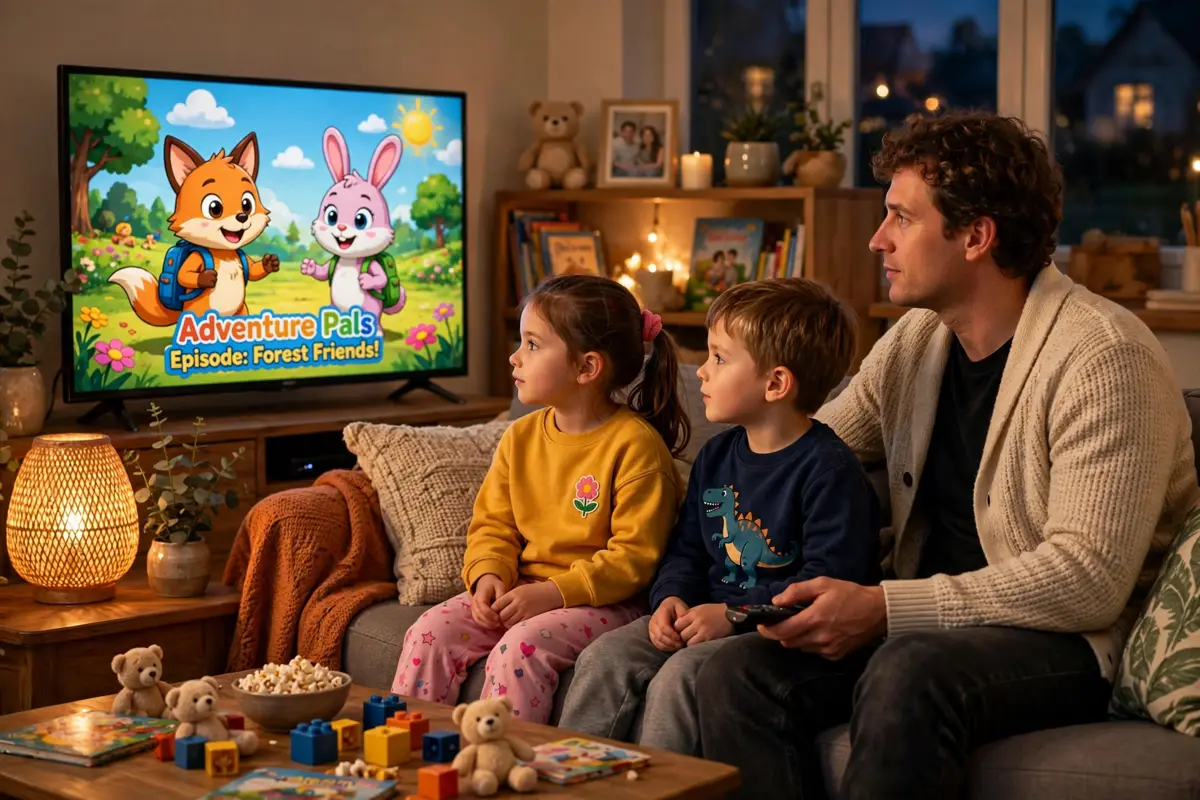
A child with the remote can reach an adult channel in about three taps. A modern IPTV service holds tens of thousands of channels in one list, films and series on demand, and no 9pm watershed. The tools to make IPTV safe for children are already inside your player app, your television and your broadband account. This guide sets them up in layers.
Quick answer
Quick answer: Make IPTV kid-safe in four layers. First, set a PIN in your IPTV player app — TiviMate or IPTV Smarters Pro — and hide or lock the adult and mature categories. Second, lock the app’s settings so a child cannot switch the controls off. Third, add the device lock: the Fire TV Stick’s parental controls or your Samsung or LG television’s rating lock. Fourth, switch on your broadband provider’s free filter — Sky Broadband Shield, BT Parental Controls, Virgin Media Web Safe or TalkTalk HomeSafe.
Key points:
- Hide the adult categories first, then lock them with a PIN — hiding alone is not enough, and a PIN alone leaves the channels visible.
- Change every default PIN: 0000 and 1234 are the first codes any child will try.
- Set the controls on every device — locks are per device, not per subscription.
Checked on 15 November 2026. The menu paths below follow the way TiviMate, IPTV Smarters Pro, Fire TV and UK broadband filters actually work, not guesswork.
IPTVUK at a glance
- Channels55,000+ live UK & international channels
- On demand195,000+ movies and TV series on demand
- Picture quality4K and Full HD with Anti-Freeze Technology 9.1
- Catch-up7-day catch-up TV included
- Pricesfrom £12.99 a month, no long contract
- Support24/7 UK support on WhatsApp
Free trialTry before you pay — start a free trial tonight.
Is your current setup safe? Run this 2-minute check first
Before you change anything, find out how exposed your setup really is. Do the test yourself, as a child would.
| What you check | What it tells you | What to do next |
|---|---|---|
| Scroll the channel categories | An adult or 18+ category is visible | Hide it (Step 2), then lock it (Step 1) |
| Search for a cartoon title | Adult or mature results appear in search | Hide the category — hidden groups leave search too |
| Open the app settings without a PIN | Anyone can switch the controls off | Lock the settings behind the same PIN |
| Open the IPTV app from the home screen | The app opens straight into the full list | Add the device-level app-launch lock (Step 3) |
If more than one row fails, do not be surprised — most family setups fail several on the first check. Run through the table again once the locks are set: every row should pass.
Step 1: Set a PIN in your IPTV player app
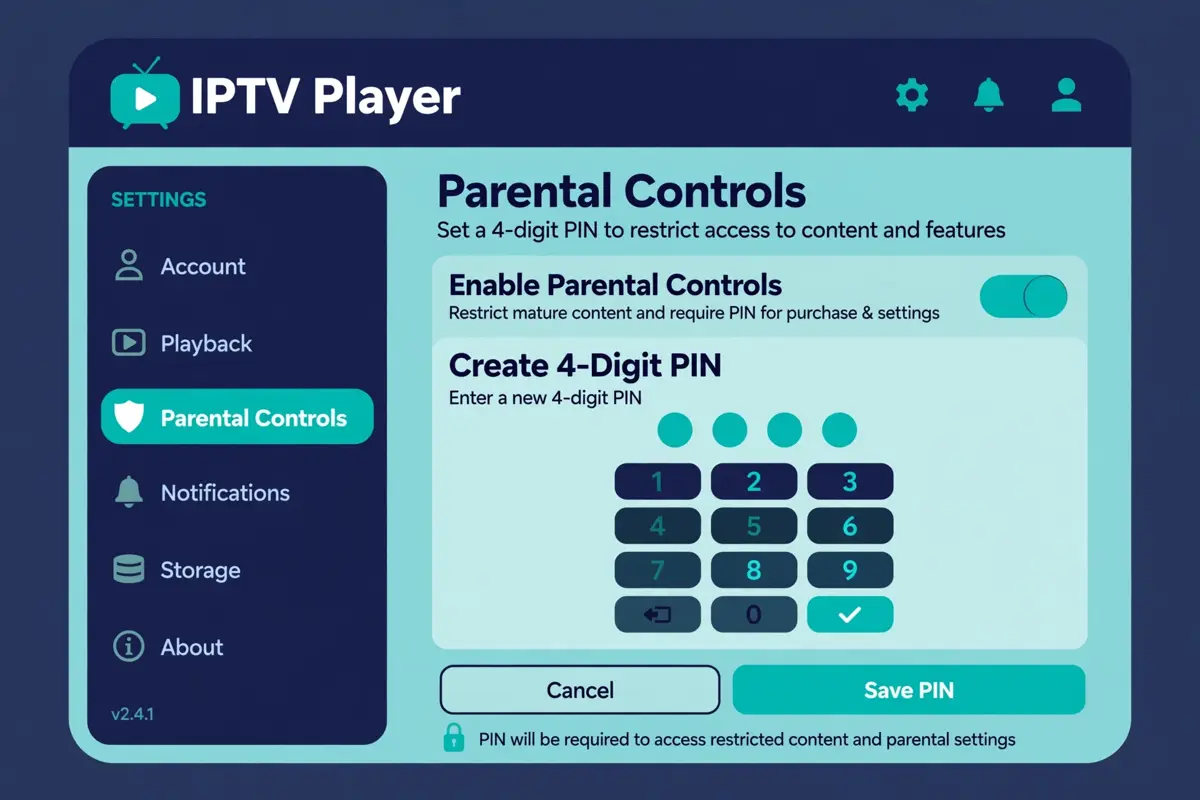
Start here, because the app is where the channels actually are. Both main IPTV players — TiviMate and IPTV Smarters Pro — have a built-in parental control system: a master PIN that locks chosen categories. Pick a code your children cannot guess: not 0000, not 1234, not a birthday.
In TiviMate: press left to open the side menu and go to Settings > Parental controls. Toggle parental controls on and enter a 4-digit PIN, then confirm it. Turn on the settings lock too, so a child cannot switch the controls off.
In IPTV Smarters Pro: open Settings > Parental Control from the main dashboard (some versions show a padlock icon at the top). Create a 4-digit PIN when asked — if the app asks for an existing PIN first, try 0000, the usual starting code. Then test it: open a locked category and confirm the app asks for the PIN.
Step 2: Hide the adult categories, then lock them
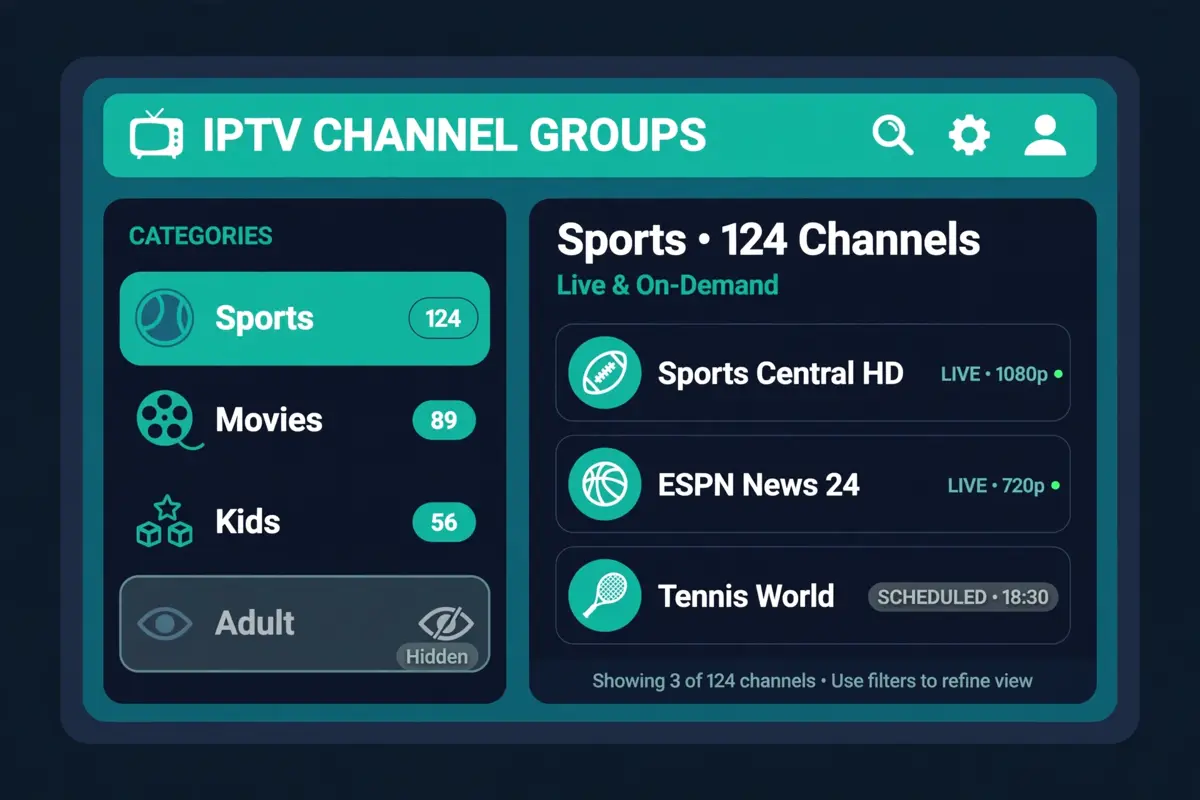
Hiding and locking do two different jobs, and you want both. Hiding takes a category out of the channel list, the guide and the search results, so a child never sees it in the first place. Locking puts a PIN on it, so even if it is found, it cannot be opened. Hide first, lock second.
In TiviMate: go to Settings > Parental controls and choose Locked categories or Hidden categories, then tick the groups to restrict — typically anything labelled Adult, 18+, XXX or Mature. You can also long-press a group in the channel list and choose Lock Group or Hide group.
In IPTV Smarters Pro: open Settings > Parental Control, then choose Live TV Categories, Movies Categories or Series Categories. Tap the padlock icon next to each sensitive category, then save. Do all three sections — live channels, films and series — because an adult film category is just as exposed as an adult channel category.
Step 3: Lock the device itself — Firestick, Samsung and LG
The app lock protects the channels; the device lock protects everything around them. A child who can open any app or install a new player can walk around the app controls entirely. So lock the device too.
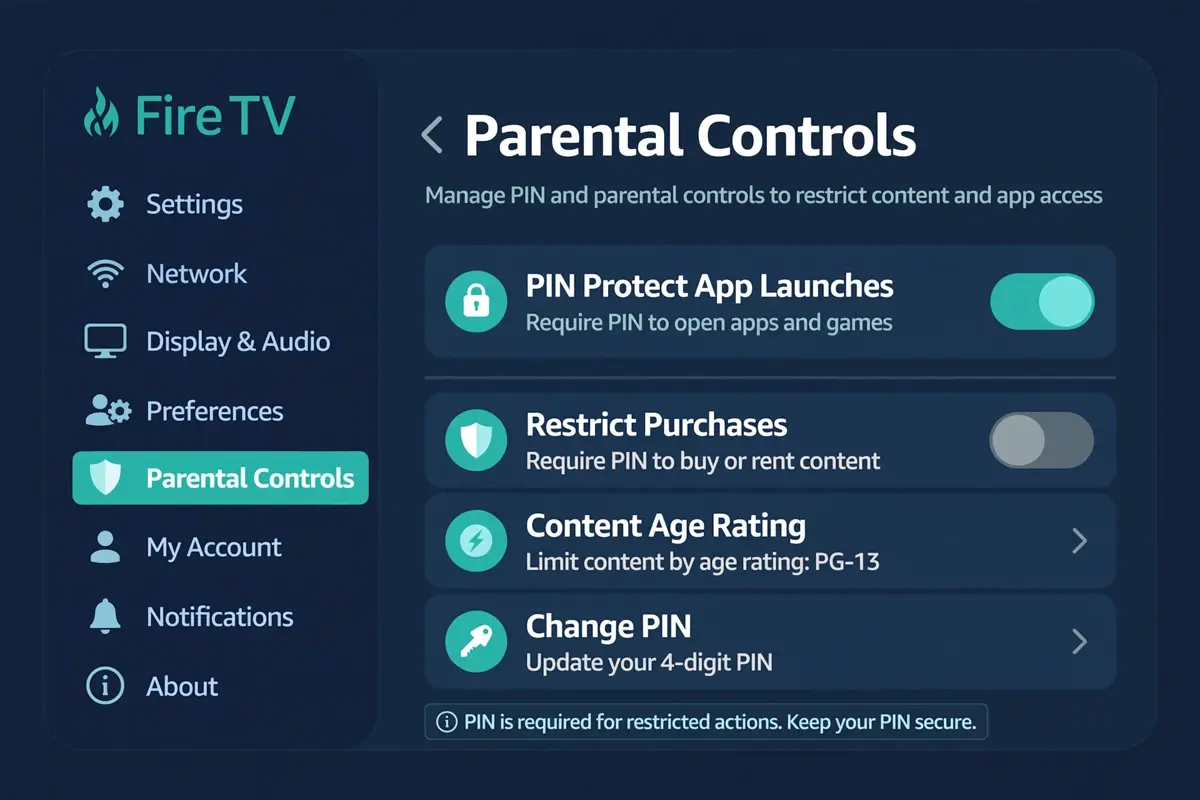
Fire TV Stick: go to Settings > Preferences > Parental Controls and switch them on, creating a 5-digit PIN when asked. Turn on PIN Protect Purchases, so nothing can be bought or rented by accident, then PIN Protect App Launches, which asks for the PIN before any installed app opens. Then open Viewing Restrictions and choose the age level for your youngest viewer: the Fire TV blocks Teen (PG-13/TV-14) and Mature (R/TV-MA) content by default once controls are on. Note that Fire TV’s own viewing restrictions only reach Prime Video content, not third-party apps.
Samsung Smart TV: go to Home > Settings > Broadcasting > Program Rating Lock, enter the PIN — the factory code is 0000 — and choose the age rating to block. Channel Lock, in the same menu, blocks individual channels.
LG Smart TV: press Settings > All Settings > General > Safety (on 2021 and newer sets, Safety sits under System inside General), switch Safety on and enter a PIN — again, the default is 0000, so change it at once. From there you can lock channels, block programmes above a chosen rating, and lock apps and inputs.
Step 4: Build a kids-only view, then switch on your ISP filter
Once the adult categories are hidden and locked, make the everyday screen a child can actually use. The simplest version is a favourites list: in TiviMate, use the groups filter to show only the children’s categories — CBeebies, CBBC, Cartoon Network, Nickelodeon, Disney Channel and the kids’ film section — and add them to favourites. For older children, use separate profiles: a Parent profile with full access and a Kids profile with only the children’s categories, with profile switching locked behind the PIN.
The final layer sits outside the television entirely: your broadband provider’s filter, which blocks adult websites across every device on your home Wi-Fi. BT, Sky, TalkTalk and Virgin Media all include one free with the broadband package. Sky Broadband Shield offers PG, 13 or 18 levels — the default is 13, switching to 18 between 9pm and 5.30am. BT Parental Controls, in the My BT app, offers Strict, Moderate or Light, plus filter times such as a homework-time block. Virgin Media Web Safe (now Essential Security) and TalkTalk HomeSafe offer the same idea: category blocking, blocked-site lists and time controls. Our Virgin Media Web Safe guide and TalkTalk HomeSafe guide cover those settings.
Know what this layer can and cannot do. A broadband filter answers one question — should this website load on this connection? — and it cannot see inside an IPTV app once the stream is running. That is why it is the final layer, not the first: it catches adult websites and accidental clicks, while the app PIN and the device lock catch the channels. Since 25 July 2025 the UK’s Online Safety Act has also required sites and apps children are likely to use to keep them away from pornography and other harmful content, with age checks — but that is a backstop, not a substitute for your own controls.
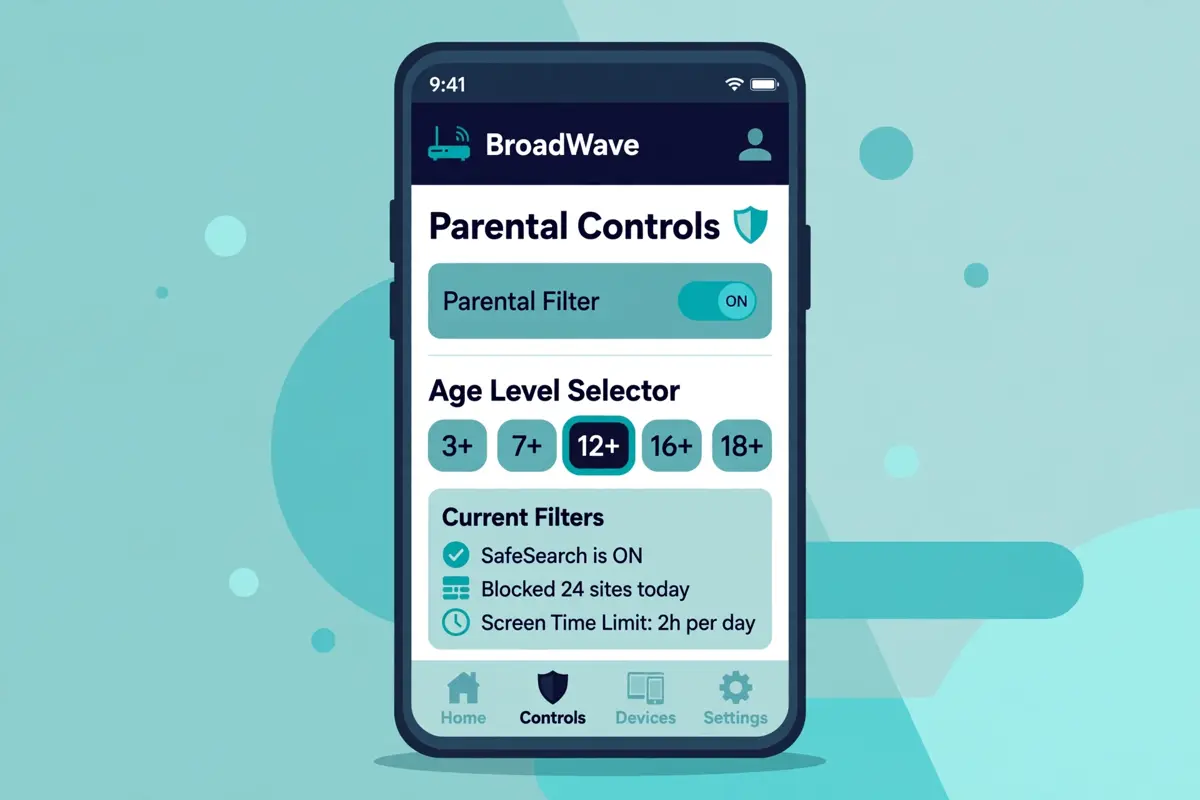
What this says about your current IPTV setup
The controls in this guide work in any player app, but they only work well when the service itself is organised to be locked down: clear category names and adult content in its own group rather than mixed into the general list. Some providers bury adult channels inside general categories where no category lock can reach them, or run a VOD library with no ratings at all — and then no PIN in the world will make the service kid-safe, because there is nothing to lock. If your current service is like that, the fix is not another settings menu — it is a service that is built to be controlled. Find out with a trial: set the PIN, hide the adult categories, and hand the remote to your child for an evening. If they see nothing but children’s channels, the service is fit for your family.
Try before you pay
Try IPTVUK free tonight: start a free trial and test the full service on your own television — set the parental PIN, hide the adult categories, and check the kids’ channels and the 7-day catch-up with your family. Then compare the three plans on the pricing page (£12.99 a month, £24.99 for three months, £49.99 a year), or order in minutes by messaging us on WhatsApp.
Our Firestick setup guide, Plusnet Safeguard fix, EE Content Lock fix and IPTV buyer’s guide cover the related steps — the full list is on our blogs page. If you are still weighing up the cost, our IPTV vs Sky & Virgin Media comparison shows what a full Sky or Virgin package costs next to IPTVUK, the best IPTV UK guide compares the leading services side by side, and the IPTV prices UK guide breaks down what IPTV costs in 2026.
Sources
Menu paths and filter details checked on 15 November 2026. IPTVUK service details are our own.
- TiviMate parental controls — PIN, locked and hidden categories, settings lock (iptvhelpcenter.com; bestxtreamiptv.com).
- IPTV Smarters Pro parental control — 4-digit PIN, lock or hide categories (bym3u.com; iptvhelpcenter.com).
- Amazon Fire TV parental controls — 5-digit PIN, app-launch protection, viewing restrictions (firestick.io; Amazon forum).
- Samsung and LG TV locks — default PIN 0000 (techpenny.com; gardion.io; acrossplatforms.com).
- UK broadband filters — Sky Broadband Shield, BT Parental Controls, Virgin Media Web Safe, TalkTalk HomeSafe (UK Safer Internet Centre; internetmatters.org).
- UK Online Safety Act — age checks in force since 25 July 2025.
- IPTVUK service details — ukiptv.site (55,000+ channels, 195,000+ movies and series, Anti-Freeze 9.1, 7-day catch-up, plans £12.99/£24.99/£49.99).
Verdict: hide it, lock it, lock the device, filter the connection
Kid-safe IPTV is four layers, in this order: a PIN and hidden adult categories inside the player app, the app’s settings locked behind the same PIN, a device lock on the Firestick or television, and your broadband provider’s free filter switched on. Any one layer on its own can be walked around; all four together mean a child sees children’s channels and nothing else, while an adult unlocks the rest with a code.
IPTVUK carries 55,000+ live UK and international channels and 195,000+ movies and series, streams in 4K and Full HD with Anti-Freeze Technology 9.1, includes a 7-day catch-up TV guide, and backs it with 24/7 UK support. Plans run from £12.99 a month with no long contract, and every plan starts with the same full service.
Frequently Asked Questions
Q. Can I make IPTV safe for children?
Yes. Set a PIN in your IPTV player app and hide or lock the adult and mature categories, then lock the app’s settings so the controls cannot be switched off. Add a device lock on the Firestick or television and switch on your broadband provider’s free filter.
Q. How do I PIN-lock adult channels on IPTV?
In TiviMate, go to Settings > Parental controls, set a 4-digit PIN, then choose Locked or Hidden categories and tick the adult groups. In IPTV Smarters Pro, open Settings > Parental Control, create a 4-digit PIN, then lock the adult categories under Live TV, Movies and Series. Test a locked category to confirm it asks for the PIN.
Q. How do I hide adult channels on IPTV?
Hide the adult category in your player’s group settings so it disappears from the channel list, the guide and search results. In TiviMate, long-press the group and choose Hide group; in IPTV Smarters Pro, use the hide option in the category list. Lock the category with a PIN as well.
Q. What is the default IPTV parental control PIN?
Many apps and devices start at 0000, and 1234 is the other common default — including Samsung and LG televisions and some provider portals. Change the default PIN immediately, because it is the first code any child will try. Pick a code only the adults in the house know.
Q. Do parental controls work on a Fire TV Stick?
Yes, at two levels. The Fire TV Stick has its own parental controls under Settings > Preferences > Parental Controls, with a 5-digit PIN, purchase protection, app-launch locks and viewing restrictions. But those controls do not reach inside third-party apps, so you still need the PIN and category locks inside your IPTV player app.
Q. Does Sky Broadband Shield or BT Parental Controls block IPTV?
They can, by mistake. ISP filters block whole categories of websites, and they sometimes flag IPTV portals or player downloads as well. If your IPTV stops working after switching a filter on, check the filter’s blocked-sites list and add your provider’s portal as an allowed site, or drop the filter a level.
Ready to test it on your own TV?
Start with the 1 Month Pass at £12.99, set the parental PIN, hide the adult categories, and hand the remote to your child for an evening.
Your login details will be with you in about five minutes.
More from the IPTVUK Blog
📋 BUYING GUIDE
IPTV Subscription UK Buyer’s Guide: How to Choose a Safe, Legal IPTV Service in 2026
Read Full Article →🔥 FIRESTICK SETUP